 Thumbwise
AI assistant (MCP)
Let your AI assistant arrange your iPhone layout
Thumbwise includes a local MCP server, so an AI assistant like Claude or Codex can read your iPhone layout, look at your app icons and usage, and build the layout you describe in plain words. You review it in Thumbwise on your Mac. Nothing changes on your iPhone until you say so.
Updated
Set up in three steps
No coding needed. Thumbwise shows you exactly what to copy.
-
Turn it on in Thumbwise
Open Thumbwise, choose AI Integration from the Help menu and turn on Allow local AI client connections. Keep Thumbwise open while you use your assistant.
-
Add Thumbwise to your assistant
In AI Integration, pick Claude or Codex.
Using Claude Code (the Code tab or Terminal)? Choose Copy prompt, paste it into a Claude Code chat, then start a new chat. Or run this in Terminal:
claude mcp add --scope user thumbwise -- /Applications/Thumbwise.app/Contents/MacOS/thumbwise-mcpUsing regular Claude chat? Choose Copy config, add it in Claude’s Settings → Developer → Edit Config (inside “mcpServers”), then restart Claude. Claude in a web browser can’t connect, because Thumbwise runs only on your Mac.
Claude Code and Claude chat are set up separately, so set up the one you use.
Codex: choose Copy prompt, paste it into a Codex chat, then start a new session. Or run:
codex mcp add thumbwise -- /Applications/Thumbwise.app/Contents/MacOS/thumbwise-mcpIf Thumbwise isn’t in /Applications, use the path shown in AI Integration.
-
Start a new chat and ask
Assistants load their tools when a chat starts, so start a new chat once after adding Thumbwise. Then describe the layout you want.
What your assistant can do
The MCP tools run on the same engine as the Thumbwise app, so your assistant can do what you can do in the app, under the same rules.
- See your whole layout. Every page, app, folder, widget and the Dock, with exact grid positions and empty cells, plus the full list of apps installed on your iPhone.
- Read your app usage. Launch counts, which apps you switch between, and the individual timestamped events. More about usage data.
- See your icons. It can look at the actual icon images, so it can sort by color, style or anything else it can see.
- Edit the draft. Move apps, folders and widgets to any cell, into folders, into the Dock or into App Bank. Swap items, reorder pages, undo, reset to where you started, or replace the whole draft at once.
- Create, rename and delete folders and pages. Folder names go to your iPhone. Page names help you organize in Thumbwise and aren’t sent to your iPhone.
- Optimize. Run Thumbwise’s optimizer in Total Efficiency or Preserve My Organization mode, then refine the result.
- Check its own work. Try out a layout without changing the draft, compare estimated page swipes before and after, see exactly what differs from your current layout, and validate the draft against the same rules as the app.
- Check Restore and recovery. List your 5 most recent Reads, load one into the draft, and check the backup and recovery state.
Things to ask for
Each request ends with a draft in Thumbwise for you to review.
“My phone is years of clutter. Find every app I haven’t opened in the last 30 days, put them in a folder on my last page, and tell me how many swipes that saves.”
It checks your usage, builds the folder and shows estimated swipes before and after.
“Organize my apps into six categories, one page each: Social, Work, Money, Travel, Entertainment and Tools. On each page, keep the apps I use most and put the rest in a folder.”
It sorts every app by what it does, builds a page for each category and uses your app usage to decide which apps stay out on the page and which go into that page’s folder. Then it shows you the estimated swipes.
“Put all my AI apps in one folder on my first page. Pull Gemini and NotebookLM out of my Google folder, but leave Copilot in my Work folder.”
It finds the apps across your pages and folders, moves only the ones you allow and tells you where each one came from.
“Make a folder for sit-down restaurant apps only, and tell me which ones you left out and why.”
It sorts by what the apps actually are, and explains its judgment calls before you apply anything.
“I have 55 folders. Merge the ones that overlap, give them clear names and keep the apps I use every day on page 1.”
It proposes the merges and new names, removes the folders left empty and keeps your daily apps where you reach them.
“Show me three options, my current layout, Total Efficiency and Preserve My Organization, with estimated swipes for each, then recommend one.”
It tries each mode, compares the estimated swipes with your current layout and undoes each try, so your draft stays as it was until you choose.
“Put the apps I switch between most on the same page, then show me the estimated swipes.”
It uses which apps you switch between, the same signal the optimizer uses, to cut page swipes.
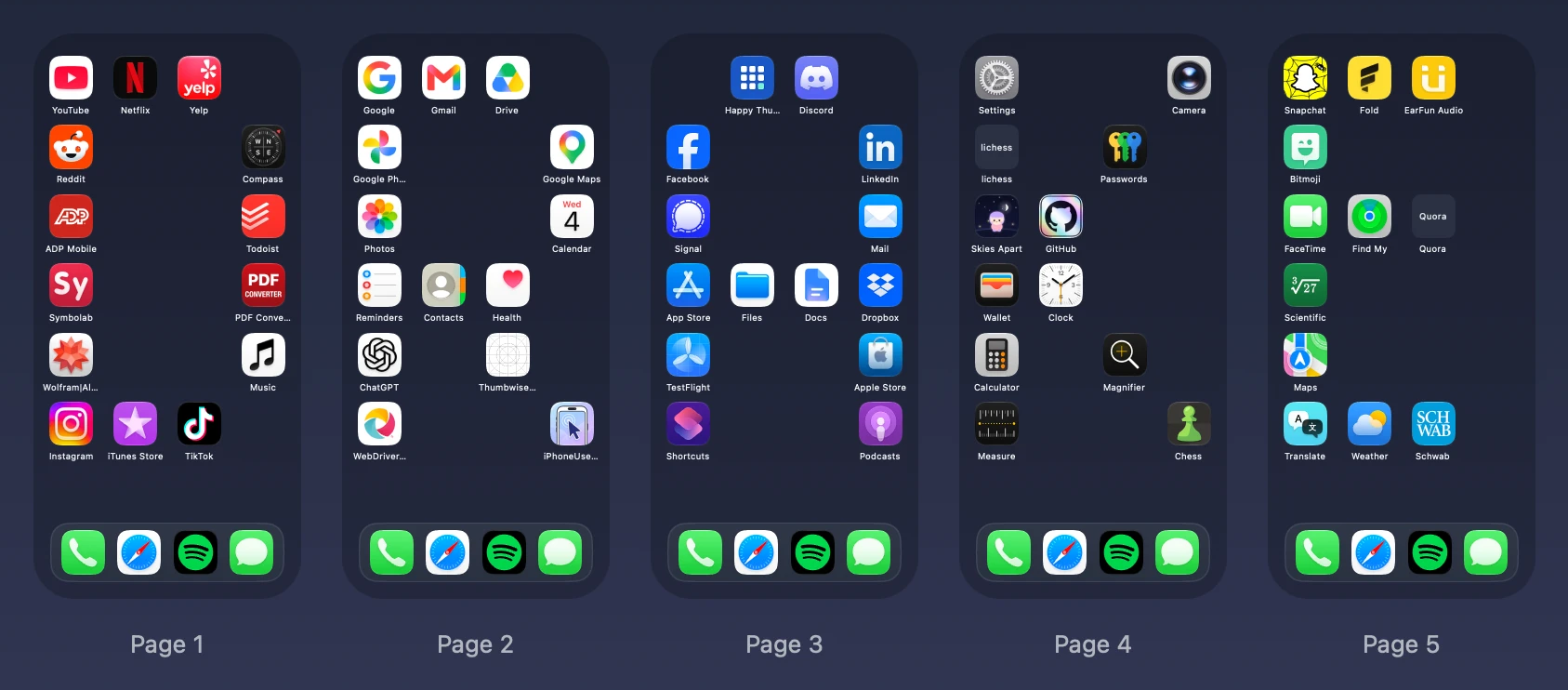
“Color-coordinate my apps by icon color and spell my name across my pages.”
A layout we made ourselves. The assistant looks at every icon, groups them by color and places them cell by cell, leaving empty spaces where the letters need them. Thumbwise applies empty spaces exactly where they’re placed.
Your app usage data
Thumbwise reads the Screen Time activity your iPhone syncs to your Mac, a record of which apps you opened and when. Turn on Share Across Devices in Screen Time on both your iPhone and your Mac, signed in to the same Apple Account.
A connected assistant can read your launch counts for each app and which apps you switch between over the past 30 days, the dates your data actually covers, and the individual timestamped events.
Your layout and app activity stay on your Mac. Thumbwise has no account and doesn’t upload them to a Thumbwise server. But anything your assistant reads, such as your layout, icons and usage data, can be sent to its AI provider and processed there under that provider’s terms. Ask for what the task needs, and turn off AI Integration whenever you like.
The same safeguards as the app
- A draft first. Your assistant works on a draft in Thumbwise, which you see on your Mac and can undo or reset. For a layout-only request, it edits and validates the draft, then stops.
- Your iPhone changes only when you say so. Your assistant asks to write to your iPhone only when you explicitly tell it to. Turning on AI Integration isn’t permission to write.
- One exact confirmation.
request_applyonly opens Thumbwise’s Apply confirmation for that exact draft; it writes nothing. The Apply goes ahead when you choose Apply in Thumbwise, or when you’ve already told your assistant to apply it and it confirms that exact prompt withconfirm_apply. - The same checks. Either way, Thumbwise runs the same checks as any Apply: your license, a fresh check that nothing has changed, a backup of your current layout and a single write. Then it reads your iPhone back to confirm the result.
- Restore. Thumbwise keeps your 5 most recent Reads. Restore loads one and applies it again, through the same confirmation.
- What stays yours. Your assistant can’t accept macOS privacy or Trust prompts, buy Thumbwise, change the AI Integration setting or install updates. It can turn off app analytics, but not turn them on.
- Off means off. Allow local AI client connections stays on until you turn it off. Turning it off closes connections and blocks new ones.
Technical details
- Local stdio server. The helper,
thumbwise-mcp, ships inside the app. Your client launches it, and it talks to the running Thumbwise app over a private Unix socket for your macOS user. Thumbwise opens no network listener. - Protocol. MCP 2025-11-25, newline-delimited JSON-RPC over stdio.
- No Thumbwise cloud. Every tool call is handled by the Thumbwise app on your Mac.
- Any MCP client. AI Integration has setup for Claude and Codex. Other clients that run local stdio servers can use the same command.
- Safe by design. Every edit needs the latest session ID and revision, so an assistant can’t act on a stale view. Tools carry read-only and destructive hints, and
get_workflow_guidegives the assistant the workflow and safety limits up front.
Version 1.0.21 has 53 tools:
| Area | Tools |
|---|---|
| Layout | get_workspace, get_apps, get_inventory, get_icons |
| Editing | move_item, reorder_pages, create_page, rename_page, delete_page, create_folder, rename_folder, delete_folder, replace_working_layout, undo_edit, reset_draft, cancel_editing |
| Optimize and check | optimize_layout, evaluate_layout, get_analysis, validate_layout, get_layout_diff |
| Usage data | get_activity_sources, sync_activity, select_activity_source, query_activity_events, get_activity_aggregates, import_activity, clear_activity |
| Apply and recovery | prepare_apply, request_apply, confirm_apply, get_recovery_state, list_recent_reads, load_recent_read, dismiss_write_result |
| iPhone and Read | discover_devices, select_device, read_iphone, clear_session |
| Prompts and operations | get_pending_prompt, confirm_prompt, dismiss_native_prompt, cancel_operation |
| Status and settings | get_workflow_guide, get_status, get_capabilities, get_device_readiness, get_entitlement_status, get_diagnostics, get_preferences, update_preferences, get_update_status, check_for_updates |
Free to try, $14.99 once to Apply
Download Thumbwise for free. Reading your iPhone, analysis and letting your assistant arrange and preview layouts are all free. $14.99 USD once unlocks Apply. No subscription.
You’ll need a Mac with Apple silicon and macOS 15 or later, an iPhone on iOS 27, a USB data cable and an MCP client such as Claude or Codex. The step-by-step guide covers the rest.