 Thumbwise
iTunes alternative
Can you still arrange iPhone apps in iTunes?
No. iTunes 12.7, released in September 2017, took apps out of iTunes, and Finder, which syncs your iPhone on a Mac today, can’t arrange them. Thumbwise lets you do it again: arrange your iPhone’s Home Screen on your Mac, then apply it to your iPhone.
Want to see it first? Watch the short demo on the homepage.
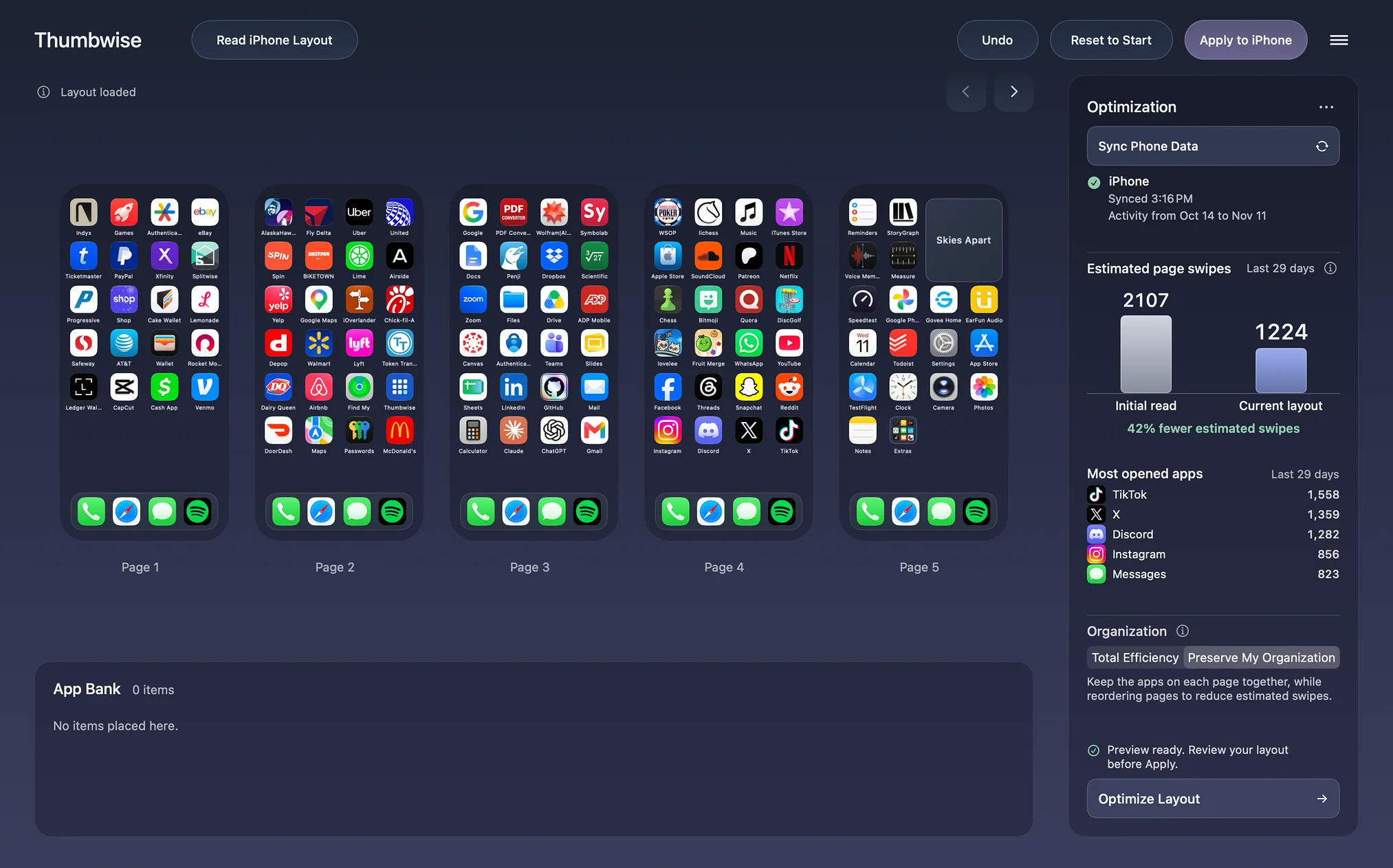
Updated
What happened to iTunes
iTunes used to have an Apps section. You connected your iPhone, saw your Home Screen pages side by side, and dragged apps between them. iTunes 12.7, released on September 12, 2017, moved apps to the App Store on the iPhone and removed app management from iTunes (Apple’s change notes, quoted here).
On a Mac, Finder took over from iTunes in macOS Catalina. Finder syncs things like music, movies, photos, contacts and calendars. It has no option for your Home Screen. On Windows, iTunes and Apple’s newer Apple Devices app don’t have one either.
Why an old iTunes won’t bring it back
You’ll find advice to install iTunes 12.6.5, a version Apple made for businesses that still managed apps. Its last update was in 2018, and it doesn’t install on macOS Mojave or later. We haven’t seen anyone confirm it works with a current iPhone on Windows, so we don’t suggest it.
How to arrange your iPhone apps in Thumbwise
Thumbwise is a free download for Mac. Here’s how it works:
-
Read your iPhone
Connect your iPhone to your Mac with a USB data cable, unlock it, and tap Trust if it asks. In Thumbwise, choose Read iPhone Layout. Thumbwise copies your Home Screen pages, folders, widgets and Dock to your Mac. Nothing on your iPhone changes until you Apply.
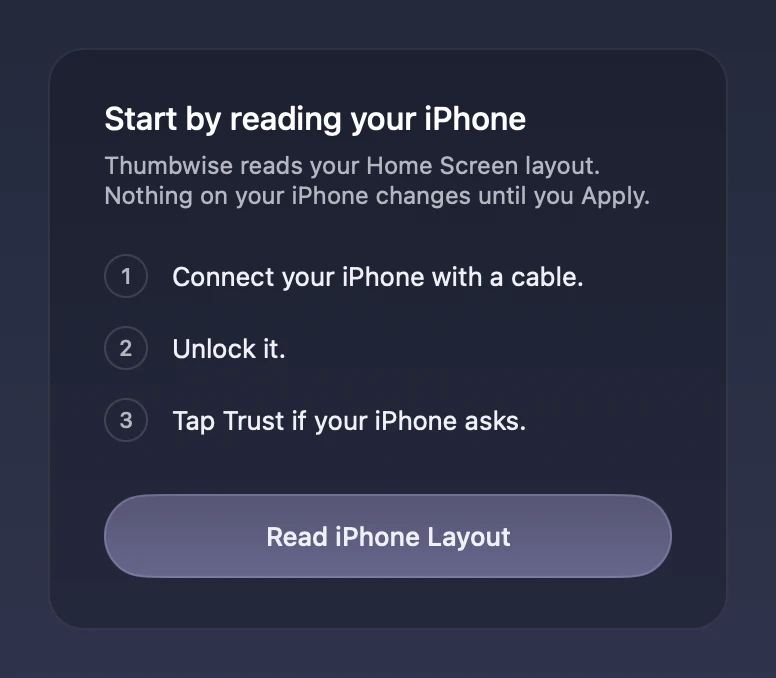
The first thing you see when you open Thumbwise. -
Arrange it
Click an app, folder or widget to pick it up, then click where it should go. Nothing else moves to make room: an empty spot stays empty, and placing an app on another app swaps the two. Set apps aside in App Bank while you decide where they go.
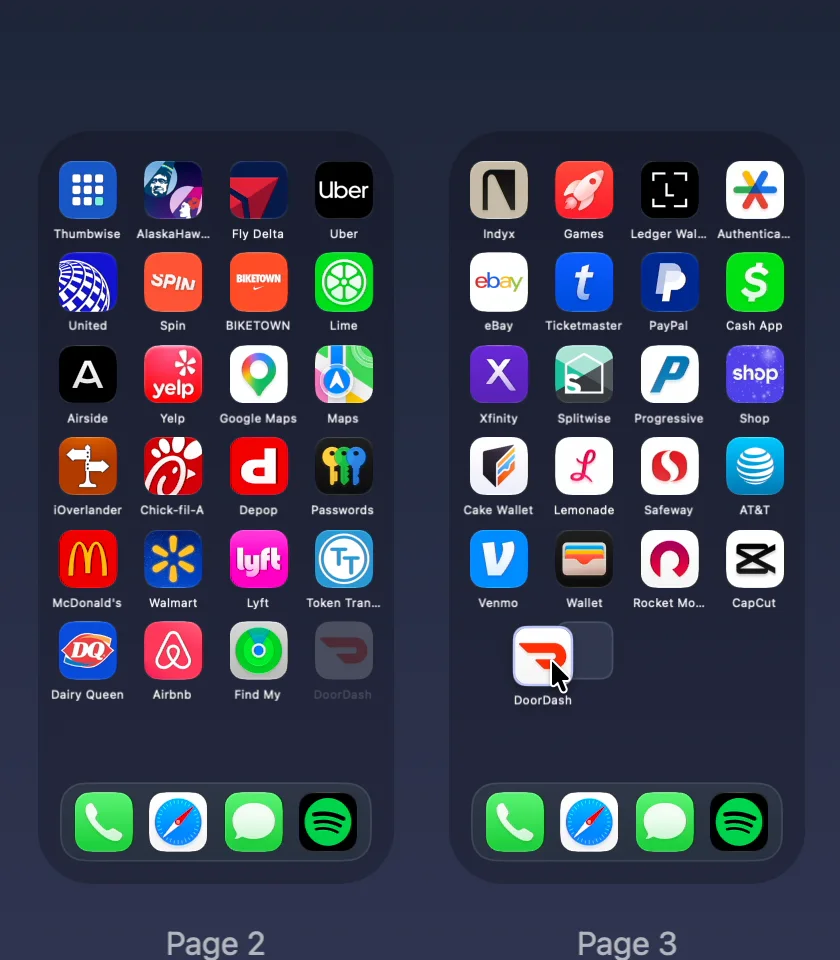
DoorDash picked up from Page 2 and placed on Page 3. The apps around it don’t move. -
Apply
Choose Apply to iPhone, then Apply Layout. Thumbwise saves your previous layout first, sends the new one to your iPhone, then reads your iPhone back to check that it matches.
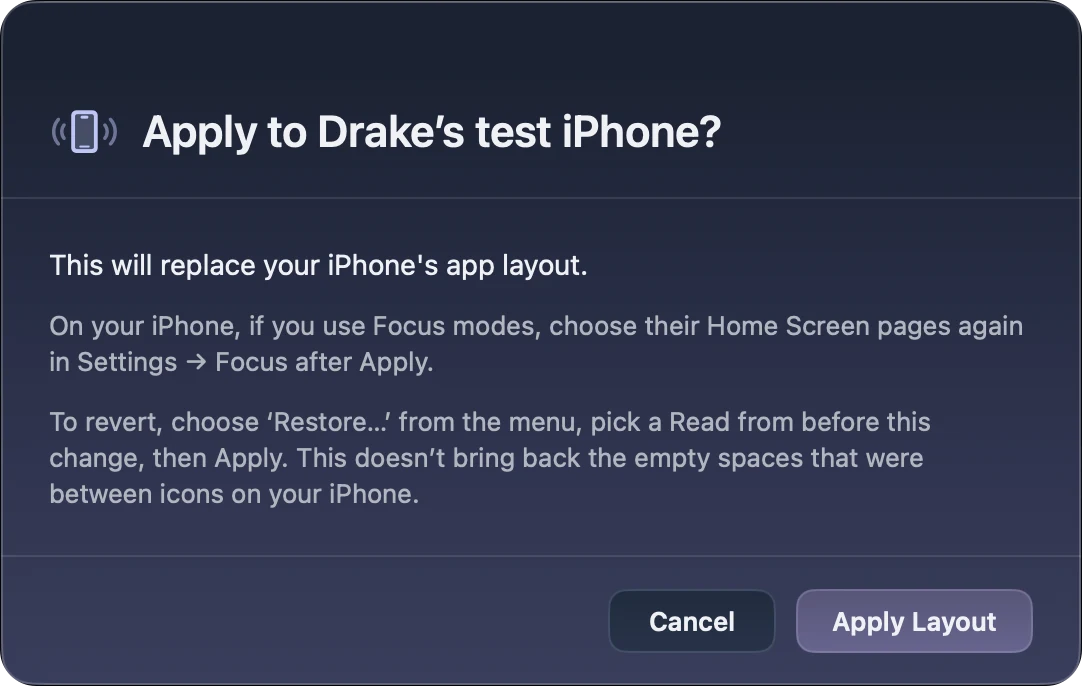
Apply asks before it changes anything on your iPhone. 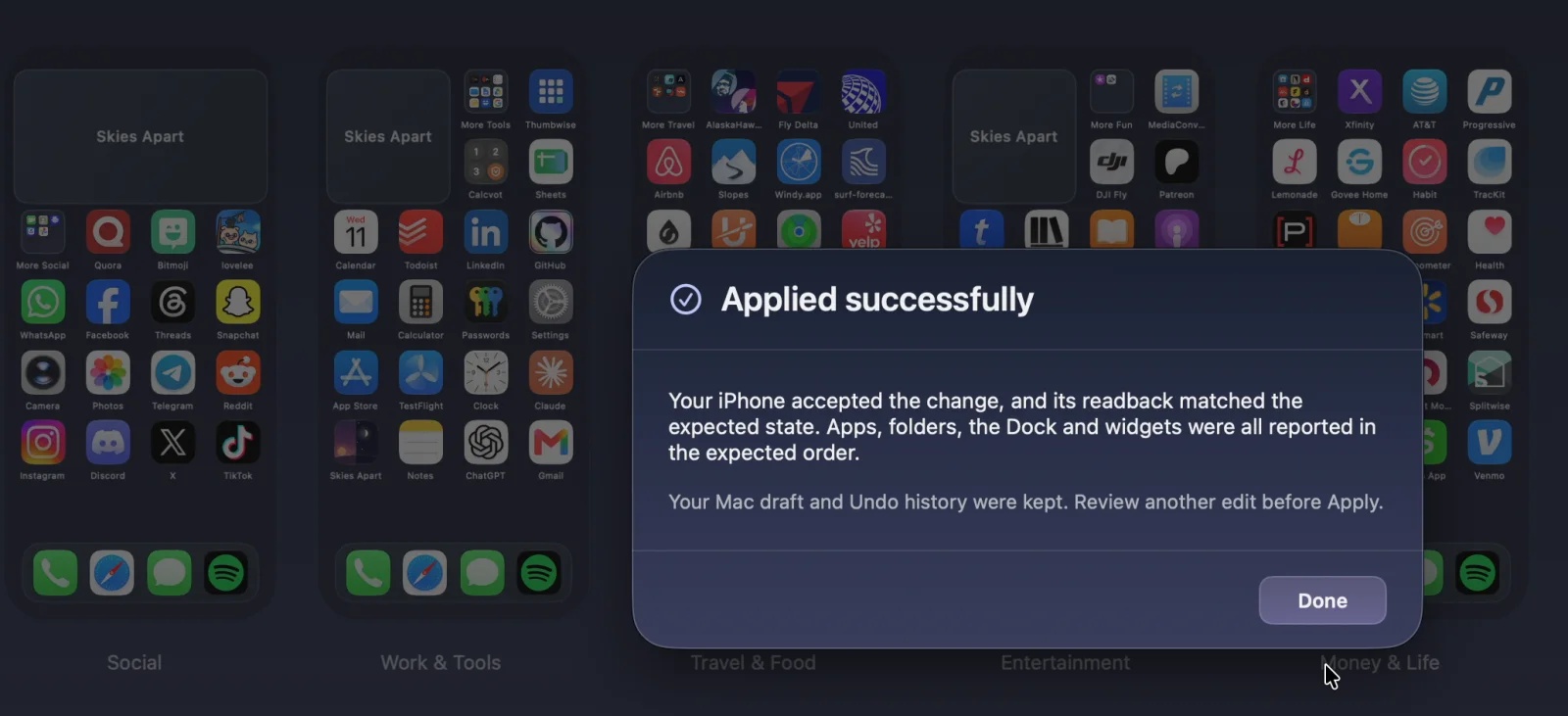
After Apply, Thumbwise reads your iPhone back and tells you if it matched. -
Changed your mind?
Thumbwise keeps your 5 most recent Reads. Choose Restore… from the menu, pick a Read from before your change, then Apply it.
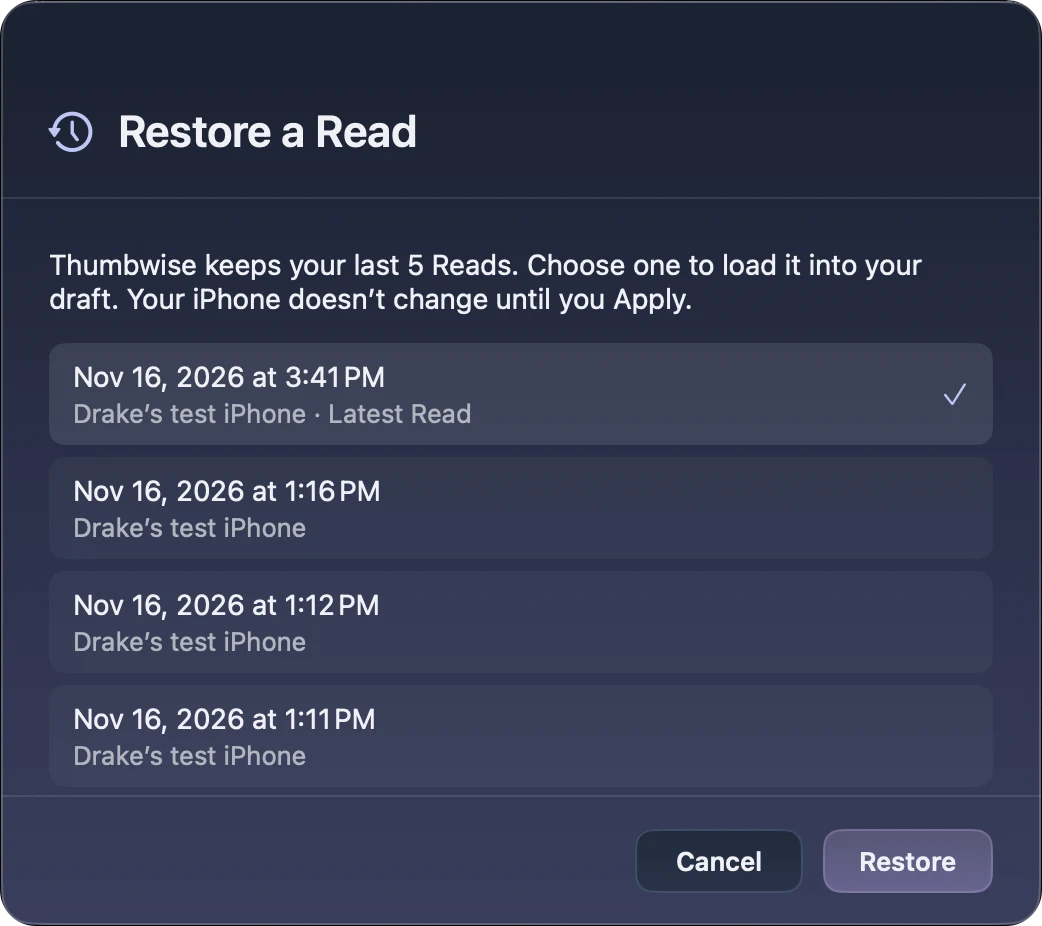
Restore loads an earlier Read into your draft. Your iPhone doesn’t change until you Apply.
Your options today
| Option | Good for | Keep in mind |
|---|---|---|
| On your iPhone | Moving a few apps. Free. | One drag at a time on a small screen. |
| iPhone Mirroring | Small changes from your Mac, without a cable. Free. | The same editing as on the iPhone, in a phone-sized window. Not available in the European Union. |
| Finder | Syncing and backing up. | Can’t arrange apps. |
| Thumbwise | Rearranging several pages at once on a Mac. | Needs a cable. Free to Read and arrange; $14.99 once to Apply. |
Questions
Why did iTunes stop letting you arrange apps?
With iTunes 12.7 in 2017, Apple moved apps to the App Store on the iPhone and took app management out of iTunes.
Can I install an older version of iTunes to arrange my apps?
The last one, iTunes 12.6.5, was a version for businesses, last updated in 2018. It doesn’t install on macOS Mojave or later, so it isn’t an option on a current Mac.
Can Finder arrange my iPhone apps?
No. Finder syncs things like music, photos, contacts and calendars to your iPhone. It has no option for your Home Screen.
Is there an iTunes replacement for Windows?
Not from Apple. Apple’s Apple Devices app for Windows backs up, updates and syncs your iPhone, but it can’t arrange apps. Thumbwise runs only on a Mac. Some Windows apps from other companies say they can do it; we haven’t tested them.
Try it free
Download Thumbwise, Read your iPhone and arrange your pages for free. Applying the layout to your iPhone costs $14.99 USD once, with no subscription. One personal license covers up to 3 active Macs at a time.
You need a Mac with Apple silicon and macOS 15 or later, an iPhone on iOS 27, and a USB data cable. iPad and iPhone Duo aren’t supported. The guide covers every step, and the FAQ covers privacy and refunds. Thumbwise is not affiliated with, endorsed by or sponsored by Apple Inc.