 Thumbwise
Home Screen on a Mac
How to organize your iPhone Home Screen on a Mac
You can, but not with anything built into your Mac. Finder can’t arrange apps. iPhone Mirroring can, but one app at a time in a phone-sized window. Thumbwise puts all your Home Screen pages side by side on your Mac, so you can arrange them there and then apply the layout to your iPhone.
Want to see it first? Watch the short demo on the homepage.
Updated
What you need
- A Mac with Apple silicon and macOS 15 or later.
- An iPhone on iOS 27. iPad and iPhone Duo aren’t supported.
- A USB data cable, not a charge-only cable.
How to organize your Home Screen in Thumbwise
Thumbwise is free to download for Mac. These are the steps:
-
Read your iPhone
Plug your iPhone into your Mac, unlock it, and tap Trust if your iPhone asks. Then click Read iPhone Layout. Your pages, folders, widgets and Dock appear on your Mac, and your iPhone stays exactly as it was.
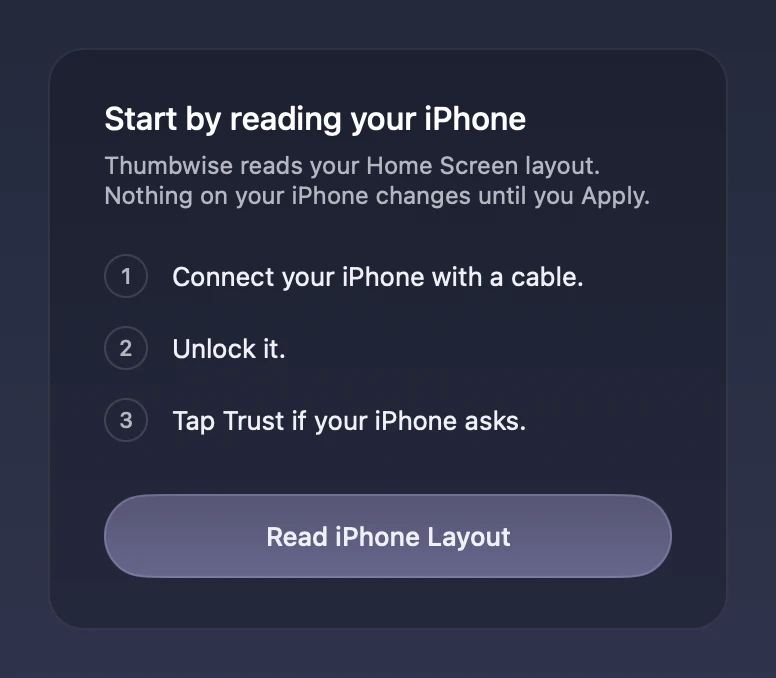
Three things to do on your iPhone, then one button on your Mac. -
Move apps, one or several at a time
Click an app to pick it up and click again where you want it. To move a group, drag a box around the apps you want, then click where the first one goes. The others follow in order.
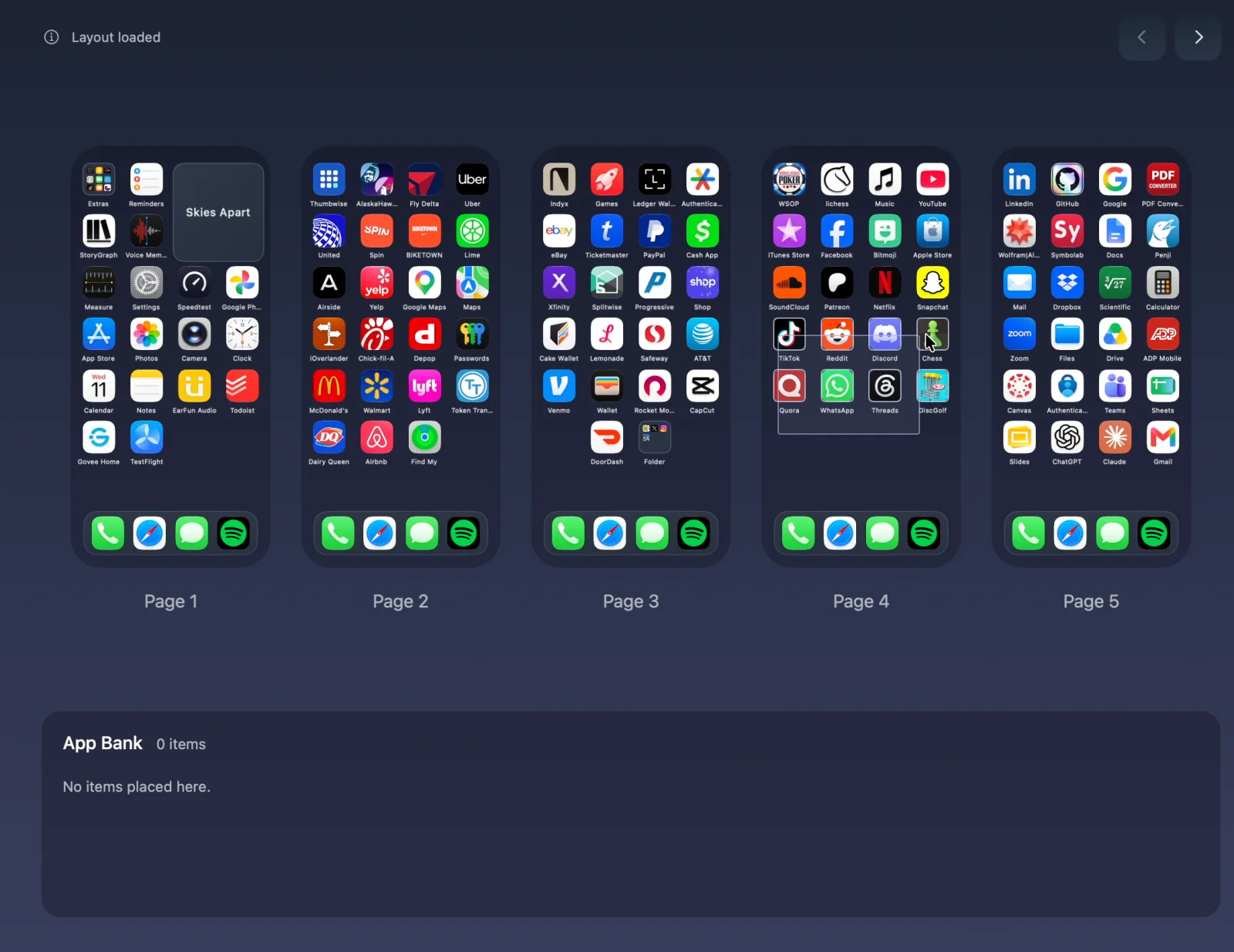
A box drawn around eight apps on Page 4 picks them all up at once. -
Park apps in App Bank
Not sure where something goes yet? Pick it up and click App Bank to set it aside, then place it later. The spots it leaves stay empty, so nothing else on the page shifts. Everything in App Bank needs a place before you Apply.
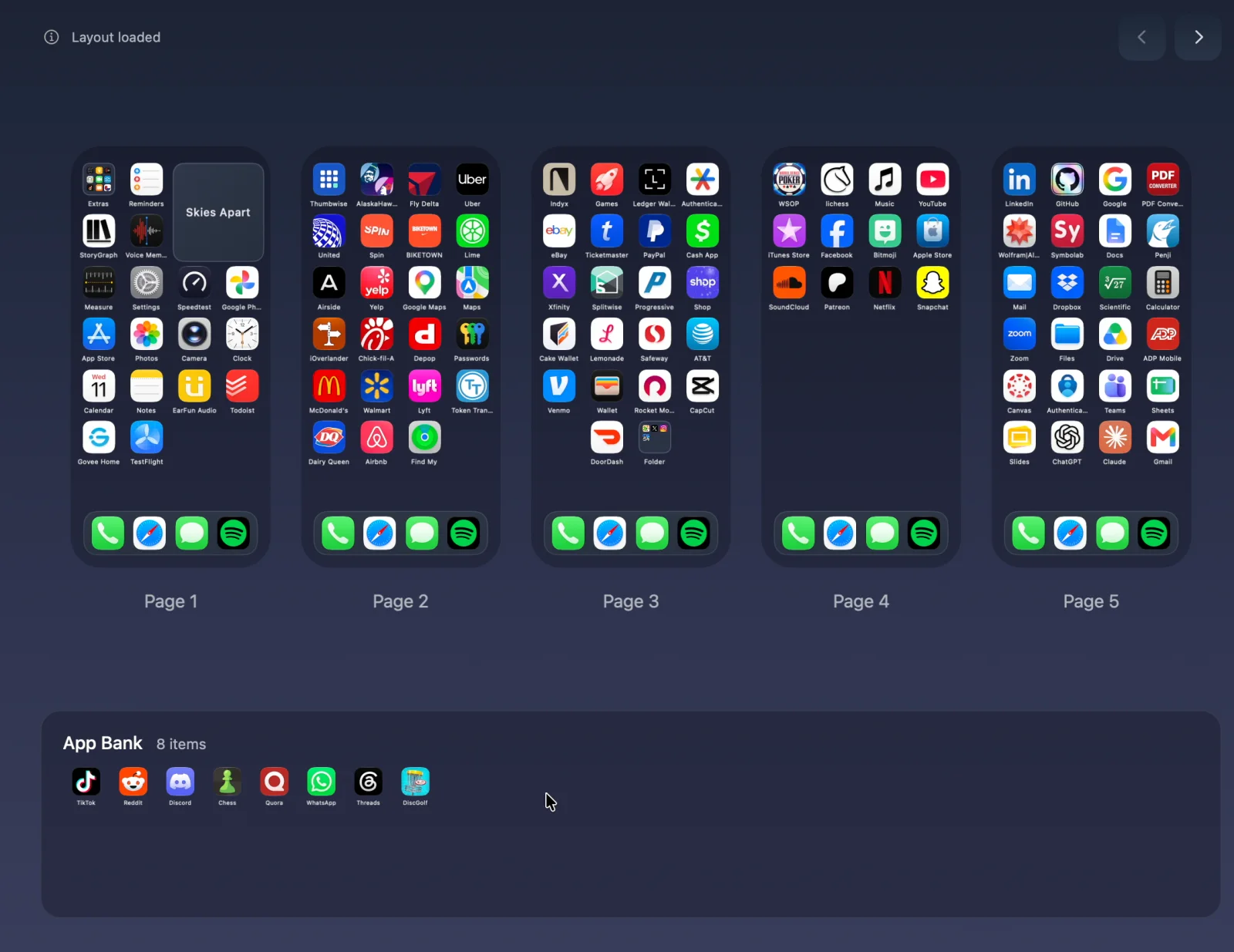
The eight apps now wait in App Bank, and the rest of Page 4 didn’t move. -
Make folders and tidy your pages
Right-click an empty spot and choose Create Folder. Double-click a folder to open it, and click its name to rename it. Right-click a page to delete it; its apps go to App Bank. The Dock is shared by every page, just like on your iPhone. Widgets move too, keeping their size and settings, into spots your iPhone allows.
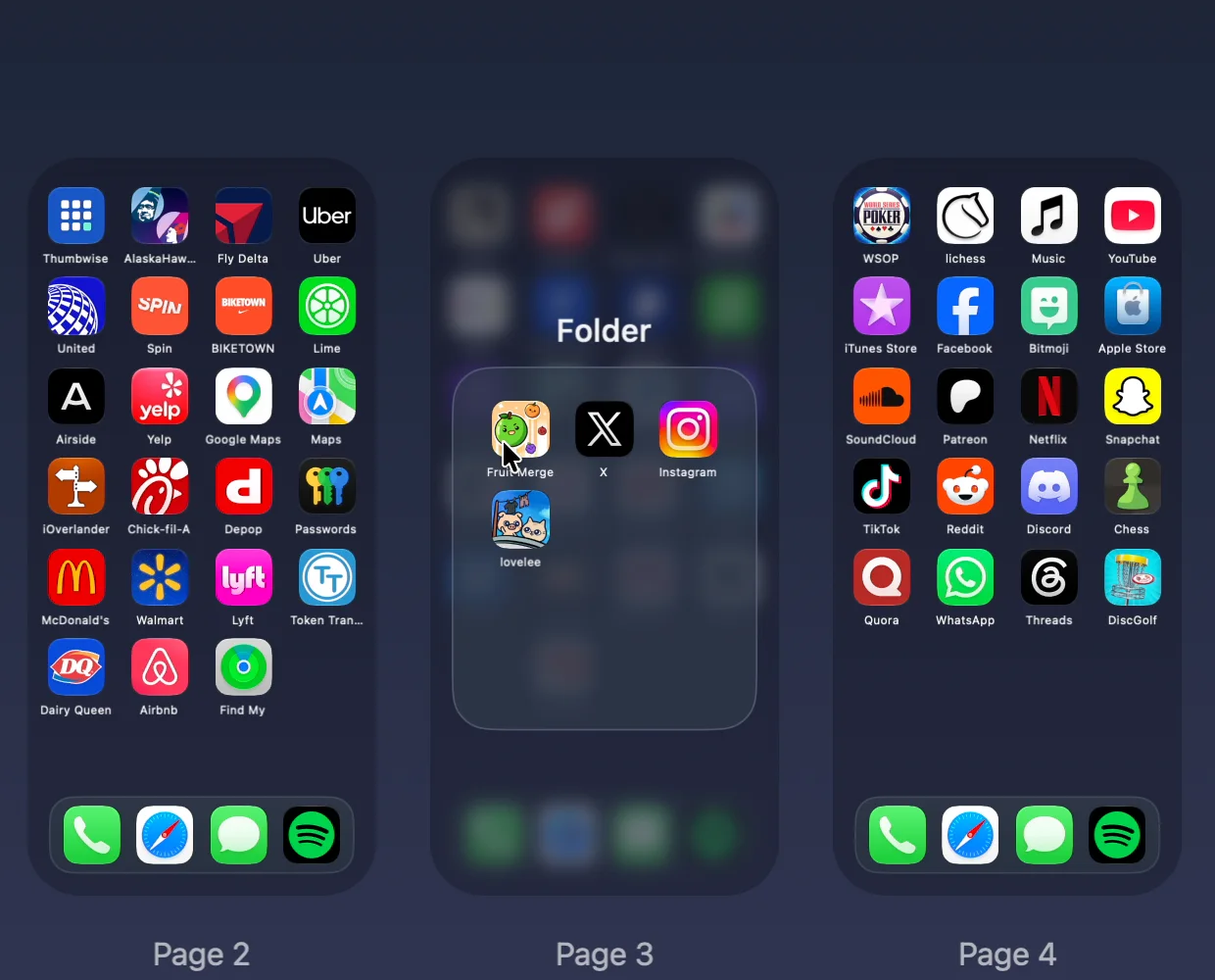
A new folder on Page 3 with four apps in it. -
Apply it to your iPhone
When the pages look right, choose Apply to iPhone and confirm with Apply Layout. Thumbwise saves a copy of your current layout first. Afterward it reads your iPhone back and tells you whether everything landed where you put it.
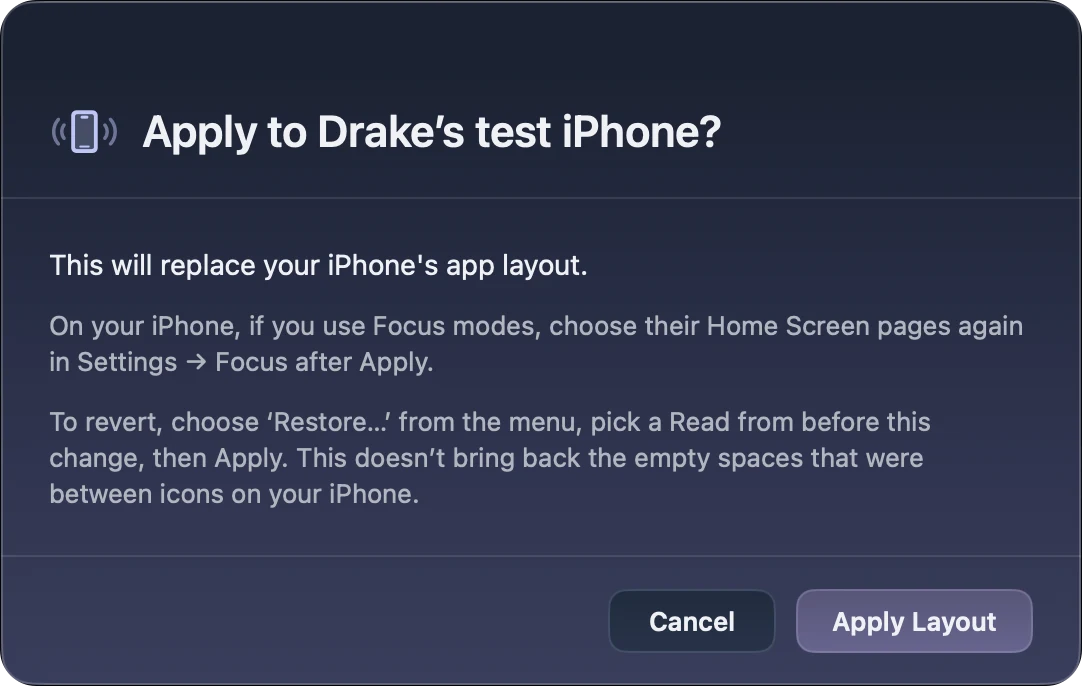
Nothing changes on your iPhone until you click Apply Layout. -
Go back if you change your mind
Thumbwise keeps your last 5 Reads. Pick one in Restore… to load it as your draft, then Apply it.
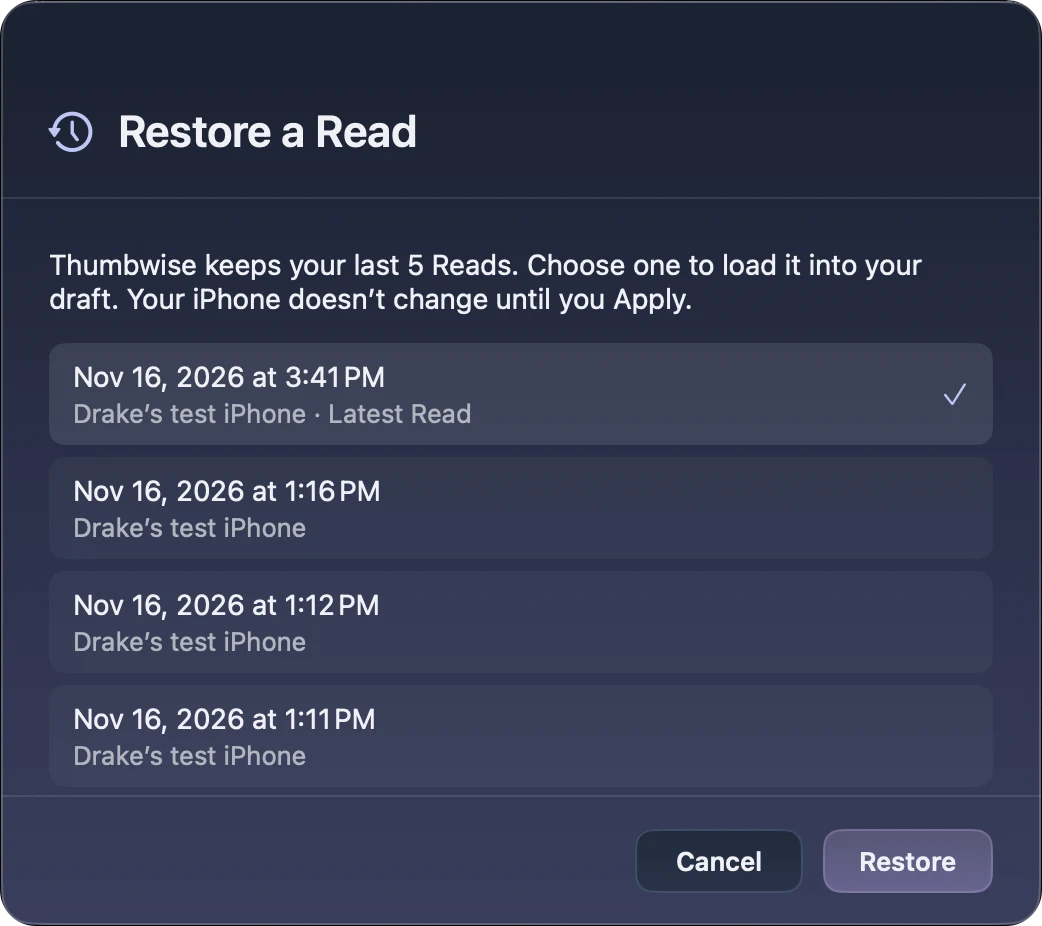
Each Read is listed with its date and time.
What Thumbwise doesn’t change
- It moves what’s already on your iPhone. It doesn’t install or delete apps, add widgets or change your wallpaper.
- Apps you keep only in the App Library stay there.
- Page names you type in Thumbwise are just for you on your Mac.
Thumbwise, your iPhone or iPhone Mirroring
Used to do this in iTunes? Here’s what happened to it.
| Feature | On your iPhone | iPhone Mirroring | Thumbwise |
|---|---|---|---|
| See your pages | One at a time | One at a time, in a phone-sized window | All side by side |
| Move a group of apps | Not in Apple’s guide | Same as on your iPhone | Drag a box around them |
| Start over | Reset Home Screen Layout, which removes your folders | Same as on your iPhone | Restore one of your last 5 Reads |
| Needs | Just your iPhone | macOS 15 and iOS 18 or later. Not available in the European Union | A USB data cable |
| Price | Free | Free | Free to Read and arrange; $14.99 once to Apply |
Questions
Can I arrange my iPhone apps on my Mac?
Yes. Thumbwise reads your Home Screen over a USB data cable, you arrange it on your Mac, and Apply writes it back to your iPhone. Reading and arranging are free.
Can I do this on a Windows PC?
Not with Thumbwise, which needs a Mac with Apple silicon. Apple’s own Windows app doesn’t arrange the Home Screen either.
Do I need to jailbreak my iPhone?
No. Thumbwise uses Apple’s normal connection between a Mac and an iPhone. You connect a cable and tap Trust on your iPhone if it asks.
What if I don’t like the result?
Thumbwise saves your previous layout before every Apply and keeps your 5 most recent Reads. Load an earlier one with Restore, then Apply it.
Try it free
Reading your iPhone and arranging your pages cost nothing. To apply a layout to your iPhone, buy Thumbwise once for $14.99 USD, with no subscription. One personal license covers up to 3 active Macs at a time.
The guide has more detail on each step, and the FAQ answers questions about privacy and refunds. Thumbwise is not affiliated with, endorsed by or sponsored by Apple Inc.