 Thumbwise
Sort by usage
How to sort your iPhone apps by how much you use them
Your iPhone can’t do it on its own. There’s no setting that sorts your Home Screen by how often you open each app. Thumbwise can: it uses your iPhone’s Screen Time activity to arrange your Home Screen pages for fewer estimated page swipes.
Want to see it first? Watch the short demo on the homepage.
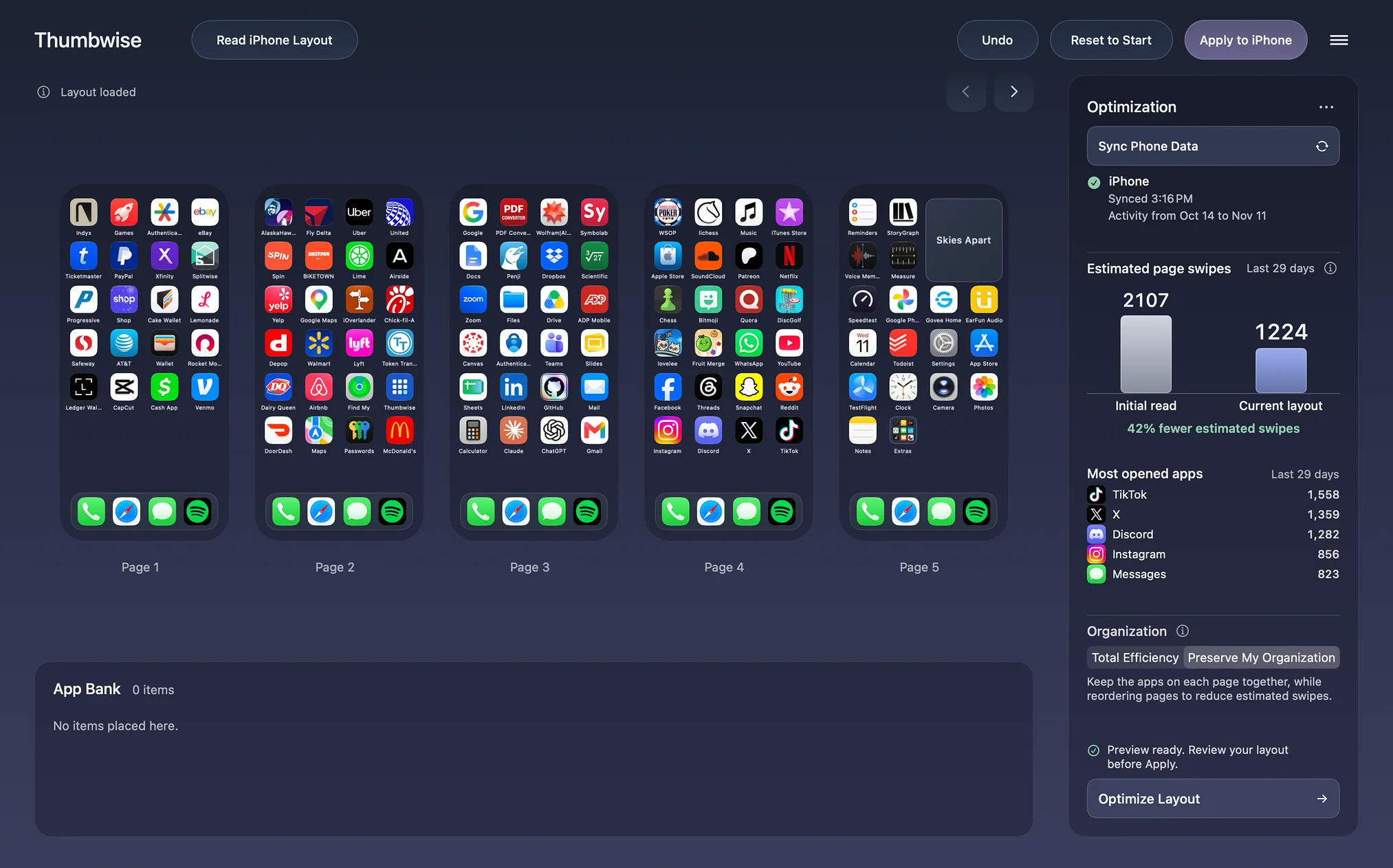
Updated
What your iPhone shows you
Your iPhone knows which apps you use most. It just doesn’t rearrange your Home Screen with it.
- App Library. Swipe past your last Home Screen page. Suggestions at the top shows the apps you use most.
- Screen Time. In Settings, Screen Time shows which apps you use and for how long. You can use that list to move your top apps to your first page by hand.
How Thumbwise sorts by use
Thumbwise looks at the order you opened apps on your iPhone over the last 30 days, or fewer if that’s all the activity there is. Each time you go from an app on one page to an app on another page, it counts how many pages apart they are. Those add up to your estimated page swipes. Then it looks for a layout with fewer.
It’s an estimate from your activity, not a count of real swipes. It updates as you move apps by hand, too.
How to sort your apps by use in Thumbwise
Thumbwise is free to download for Mac, and sorting by use is free too.
-
Share Screen Time with your Mac
On your iPhone, go to Settings > Screen Time and turn on Share Across Devices. Do the same on your Mac in System Settings. Both need to use the same Apple Account. It can take a few hours for your iPhone’s activity to reach your Mac.
-
Read your iPhone
Connect your iPhone with a USB data cable, unlock it, tap Trust if it asks, and click Read iPhone Layout.
-
Sync Phone Data
Click Sync Phone Data. If Thumbwise doesn’t have Full Disk Access yet, it asks you to turn it on in System Settings > Privacy & Security > Full Disk Access, then quit and reopen Thumbwise. The panel then shows your most opened apps, how many days of activity it found, and your estimated page swipes.
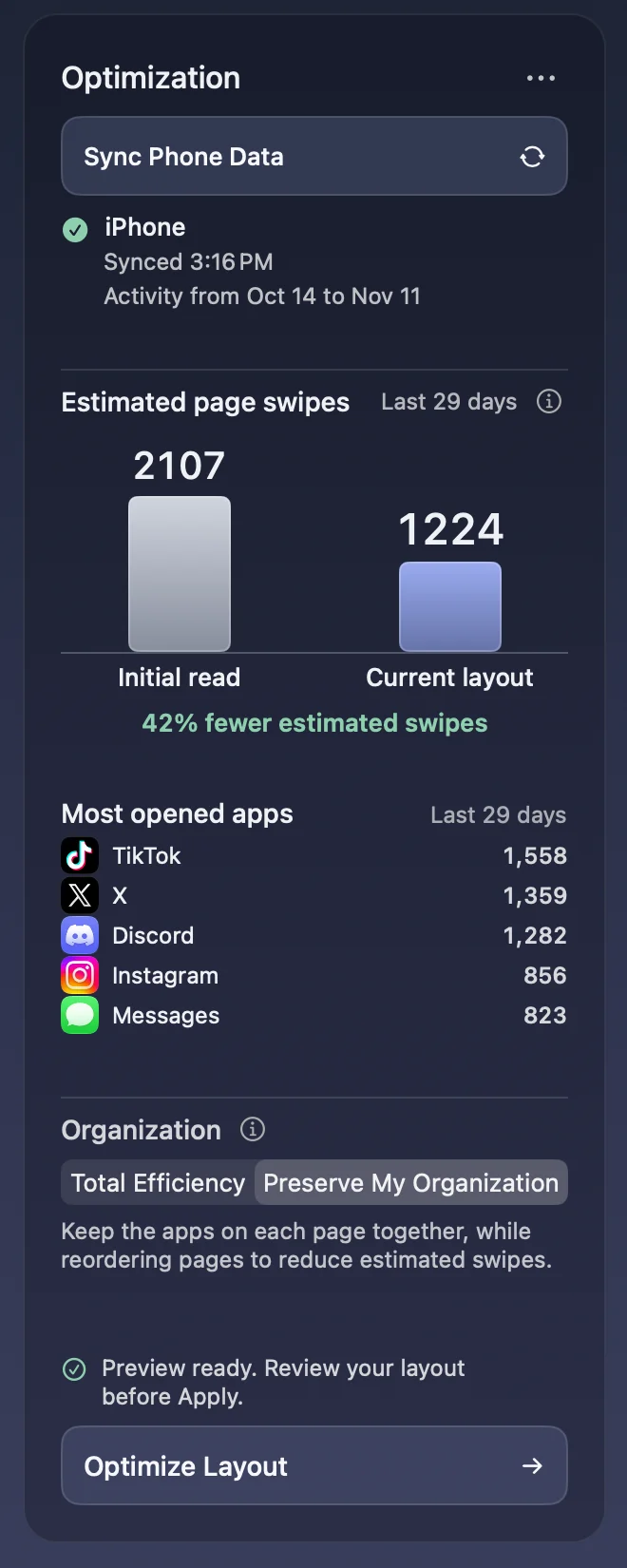
The panel says how many days of activity it’s using. -
Pick a mode, then Optimize Layout
Preserve My Organization keeps the apps on each page together and changes the order of your pages. Total Efficiency moves apps between pages and can change how many pages you have. What each mode moves and keeps.
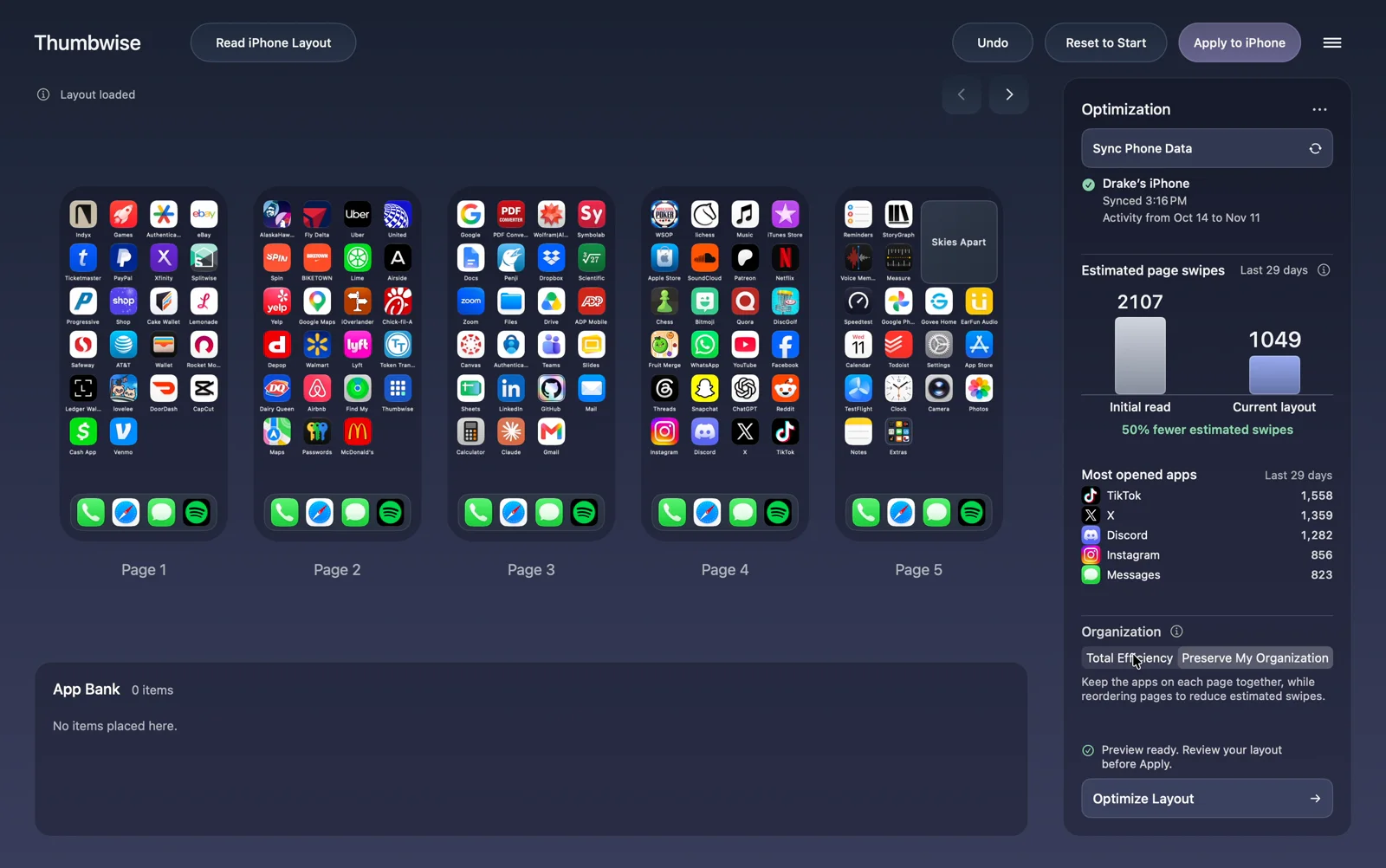
Another run on the same iPhone: Preserve My Organization took it from 2,107 estimated page swipes at the Read to 1,049. -
Adjust, then Apply
The result is a draft. Move anything you want, and the estimate updates as you go. When it looks right, choose Apply to iPhone.
Good to know
- Optimize only moves what’s on your Home Screen pages. It doesn’t delete or hide apps, and apps you keep only in the App Library stay there.
- Your Dock stays as it is. Only Total Efficiency changes it, and only if you turn off Keep Dock apps unchanged in Settings.
- Your activity stays on your Mac. Thumbwise doesn’t upload it.
- The numbers are estimates from your own activity. Fewer estimated swipes doesn’t promise you’ll save a set amount of time.
Questions
Can iPhone sort apps by most used?
Not on the Home Screen. The App Library shows the apps you use most under Suggestions, but your Home Screen pages stay where you put them.
Does my Screen Time data leave my Mac?
No. Thumbwise reads the app activity that Screen Time already keeps on your Mac, and it doesn’t upload it anywhere.
What’s the difference between the two modes?
Preserve My Organization keeps the apps on each page together and changes the order of your pages. Total Efficiency moves apps between pages and can change how many pages you have.
Do I have to use this?
No. You can arrange everything by hand. Reading, editing and Apply work without any usage data.
Try it free
Reading your iPhone, arranging and Optimize are free. Applying a layout to your iPhone costs $14.99 USD once, with no subscription. One personal license covers up to 3 active Macs at a time.
You need a Mac with Apple silicon and macOS 15 or later, an iPhone on iOS 27, and a USB data cable. iPad and iPhone Duo aren’t supported. The guide covers each step, and the FAQ covers privacy and refunds. Thumbwise is not affiliated with, endorsed by or sponsored by Apple Inc.