 Thumbwise
Organize automatically
How to organize iPhone apps automatically
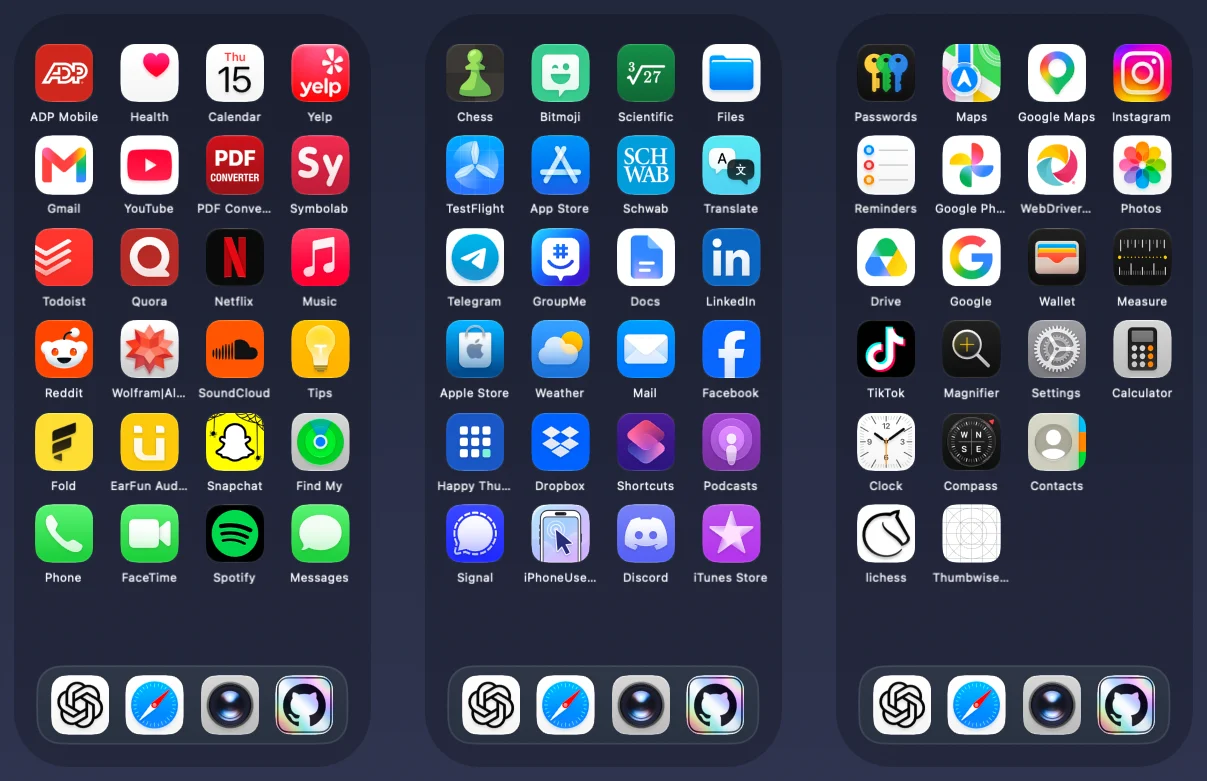
Your iPhone can’t arrange your Home Screen for you. It only sorts the App Library, and Reset Home Screen Layout lists your apps alphabetically but deletes your folders. Thumbwise can arrange your pages for you, by how much you use each app or with an AI assistant, and you check the result before it reaches your iPhone.
Want to see it first? Watch the short demo on the homepage.
Updated
What your iPhone does on its own
- App Library. Swipe past your last page. Your apps are sorted into categories automatically, and Suggestions shows the ones you use most. You can’t change those categories, and it doesn’t touch your Home Screen pages.
- Keep new apps off your pages. In Settings > Home Screen & App Library, choose App Library Only. New downloads then go straight to the App Library.
- Reset Home Screen Layout. Settings > General > Transfer or Reset iPhone > Reset > Reset Home Screen Layout. Apple’s apps go back to where they started and your other apps follow in alphabetical order. Every folder you made is removed, so it’s a fresh start, not a tidy-up.
How to organize your iPhone apps automatically in Thumbwise
Thumbwise is a free download for Mac. Here’s how it works:
-
Read your iPhone
Connect it with a USB data cable, unlock it and click Read iPhone Layout. Your pages, folders, widgets and Dock show up on your Mac.
-
Let Thumbwise arrange it
By how much you use each app. Click Sync Phone Data to bring in your Screen Time activity, pick Preserve My Organization or Total Efficiency, and click Optimize Layout. Thumbwise arranges your pages for fewer estimated page swipes and keeps every folder whole. See how the two modes work below, or how sorting by use works.
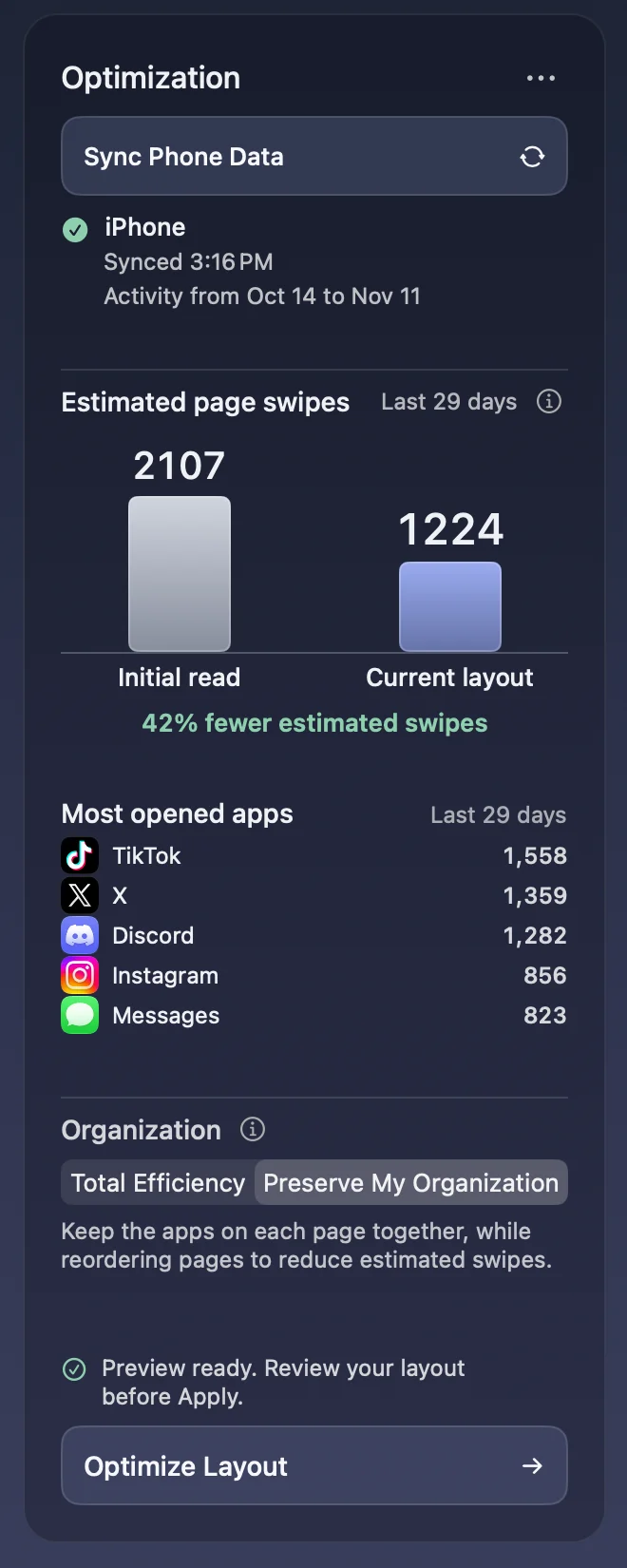
Optimize compares estimated page swipes before and after. With an AI assistant. Connect Claude, Codex or another MCP client and describe what you want, like “sort my apps by icon color” or “one page per category”. It builds a draft in Thumbwise for you to look over. More on organizing with AI.
-
Check it, then Apply
The result is a draft. Move anything you like, then choose Apply to iPhone. Nothing on your iPhone changes before that, Thumbwise saves your old layout first, and Restore loads it again if you change your mind.
How the two modes work
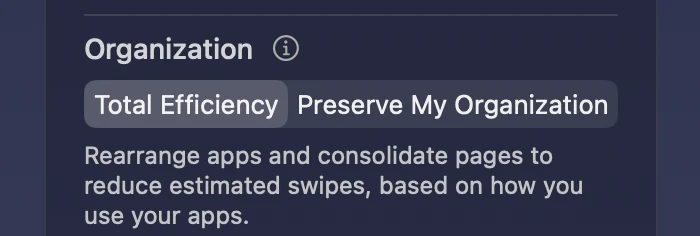
Both modes use the apps you opened on your iPhone over the past 30 days and look for a layout with fewer estimated page swipes. On each page, apps fill from the top left, row by row, with the ones you use least first and the ones you use most last. Folders move as one item and keep everything inside them.
Total Efficiency
Moves apps between pages to cut estimated swipes, then combines pages where that won’t add swipes. The number of pages can change, and blank pages are removed. Supported widgets can move too, and keep their size and setup.
Preserve My Organization
Keeps the apps, folders and widgets on each page together. It changes the order of your pages and arranges the apps within each page. You keep the same number of pages, blank pages go last, and your Dock doesn’t change.
Settings that change the result
- Order pages for fewest swipes is on by default. Turn it off and pages go from most used to least used instead.
- Let Thumbwise arrange apps on each page is on by default and applies to Preserve My Organization. Turn it off and Preserve keeps every app where it is and only reorders your pages.
- Keep Dock apps unchanged is on by default and applies to Total Efficiency. Turn it off and Total Efficiency can put up to four of your most used apps in the Dock.
Whichever mode you pick, the result is a draft you can change before you Apply. How estimated page swipes are counted.
Questions
Can iPhone organize apps automatically?
Only in the App Library, which sorts apps into categories by itself. Your Home Screen pages stay where you put them.
How do I sort my iPhone apps alphabetically?
Reset Home Screen Layout lists your downloaded apps alphabetically after Apple’s apps, but it removes every folder you made. In Thumbwise you can ask an AI assistant for an alphabetical draft and review it before you Apply.
Will sorting automatically delete my folders?
Reset Home Screen Layout does. Thumbwise’s Optimize keeps every folder whole, and nothing changes on your iPhone until you Apply.
Can AI organize my iPhone apps?
Yes, with Thumbwise on a Mac. A connected AI assistant builds a draft of your layout from what you ask for, and you review it before you Apply.
Try it free
Reading your iPhone, arranging, Optimize and the AI assistant are free. Applying a layout to your iPhone costs $14.99 USD once, with no subscription. One personal license covers up to 3 active Macs at a time.
You need a Mac with Apple silicon and macOS 15 or later, an iPhone on iOS 27, and a USB data cable. iPad and iPhone Duo aren’t supported. The guide and FAQ have more. Thumbwise is not affiliated with, endorsed by or sponsored by Apple Inc.