 Thumbwise
AI and your Home Screen
Can AI organize your iPhone apps?
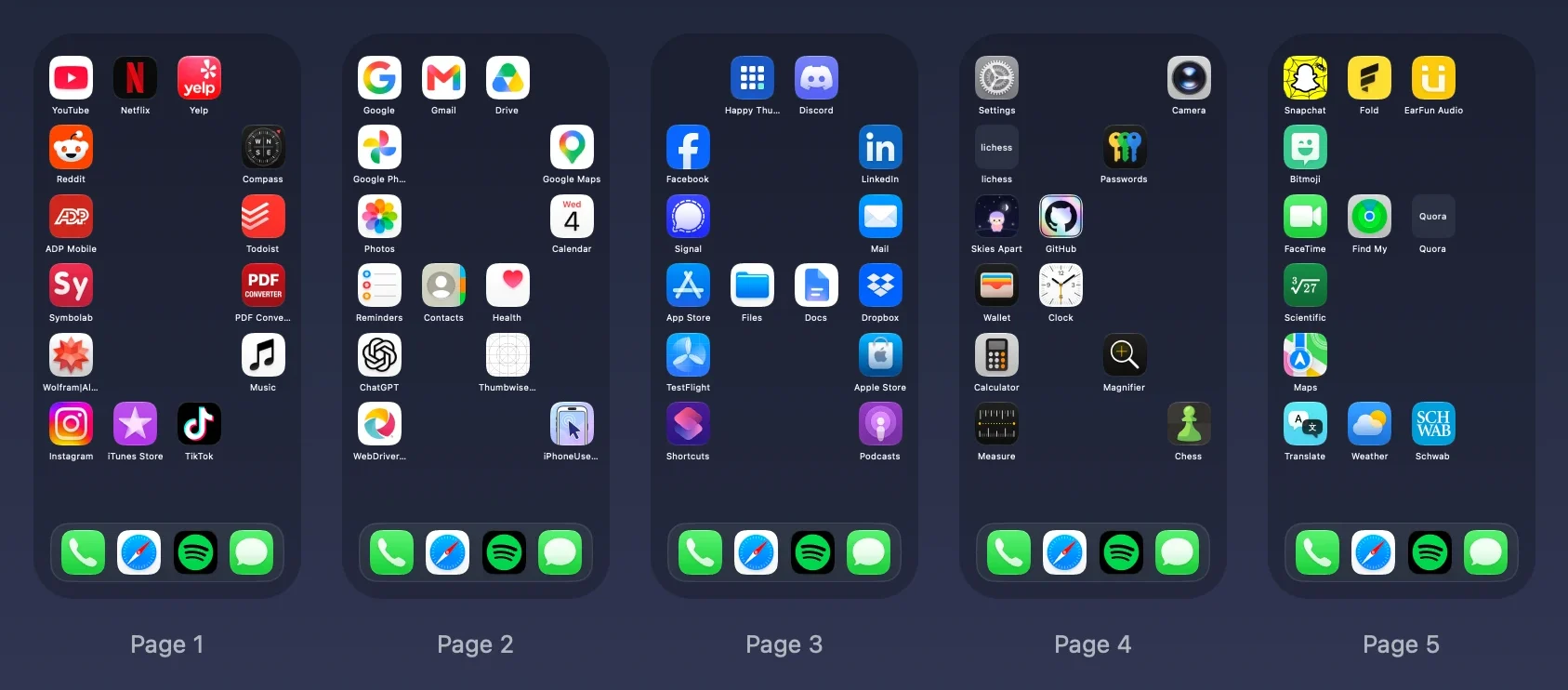
Not with anything built into your iPhone. Apple’s guides describe no feature that arranges your Home Screen for you. An AI assistant like Claude can, through Thumbwise on your Mac: you ask in plain words, it arranges a draft of your Home Screen, and nothing changes on your iPhone until you Apply.
Want to see it first? Watch the short demo on the homepage.
Updated
What your iPhone does by itself
The App Library sorts your apps into categories and shows the ones you use most under Suggestions. That’s as far as it goes. Your Home Screen pages stay exactly where you put them, and no setting rearranges them for you.
What an AI assistant can do with Thumbwise
Thumbwise includes a local MCP server. MCP (Model Context Protocol) is the standard AI assistants use to work with other apps. Once your iPhone is read into Thumbwise, your assistant works with the same layout you see on your Mac.
What it can see
- Every Home Screen page, folder and widget, and your Dock.
- The App Bank, Thumbwise’s holding area for apps you’re moving.
- Your app icons as images, so it can sort by color or by look.
- How much you use each app, from the Screen Time activity Thumbwise syncs on your Mac.
- Your estimated page swipes, for the layout you read and for the draft.
What it can change
- Move apps, folders and widgets between pages, folders, the Dock and the App Bank.
- Create, rename and delete folders.
- Add, delete and reorder pages, and name them. Page names stay in Thumbwise, because iOS doesn’t show them.
- Run Optimize in either mode, Total Efficiency or Preserve My Organization.
- Rebuild your whole layout in one step.
- Check the draft against the rules Apply uses, and Undo a change.
Arrange by how you actually use your apps
Thumbwise syncs your iPhone’s Screen Time activity on your Mac: which apps you open, how often, and in what order, over up to the last 30 days. Your assistant can read that activity and use it. It can put the apps you open most on page 1 and in the Dock, run Optimize for fewer estimated page swipes, or arrange the pages itself, then compare the estimate before and after.
- “Put the apps I use most where I reach them first.”
- “Cut my page swipes, but keep my pages the way I grouped them.”
- “Move the apps I haven’t opened this month to my last page.”
- “Put my four most used apps in the Dock.”
- “How many estimated page swipes does this draft save?”
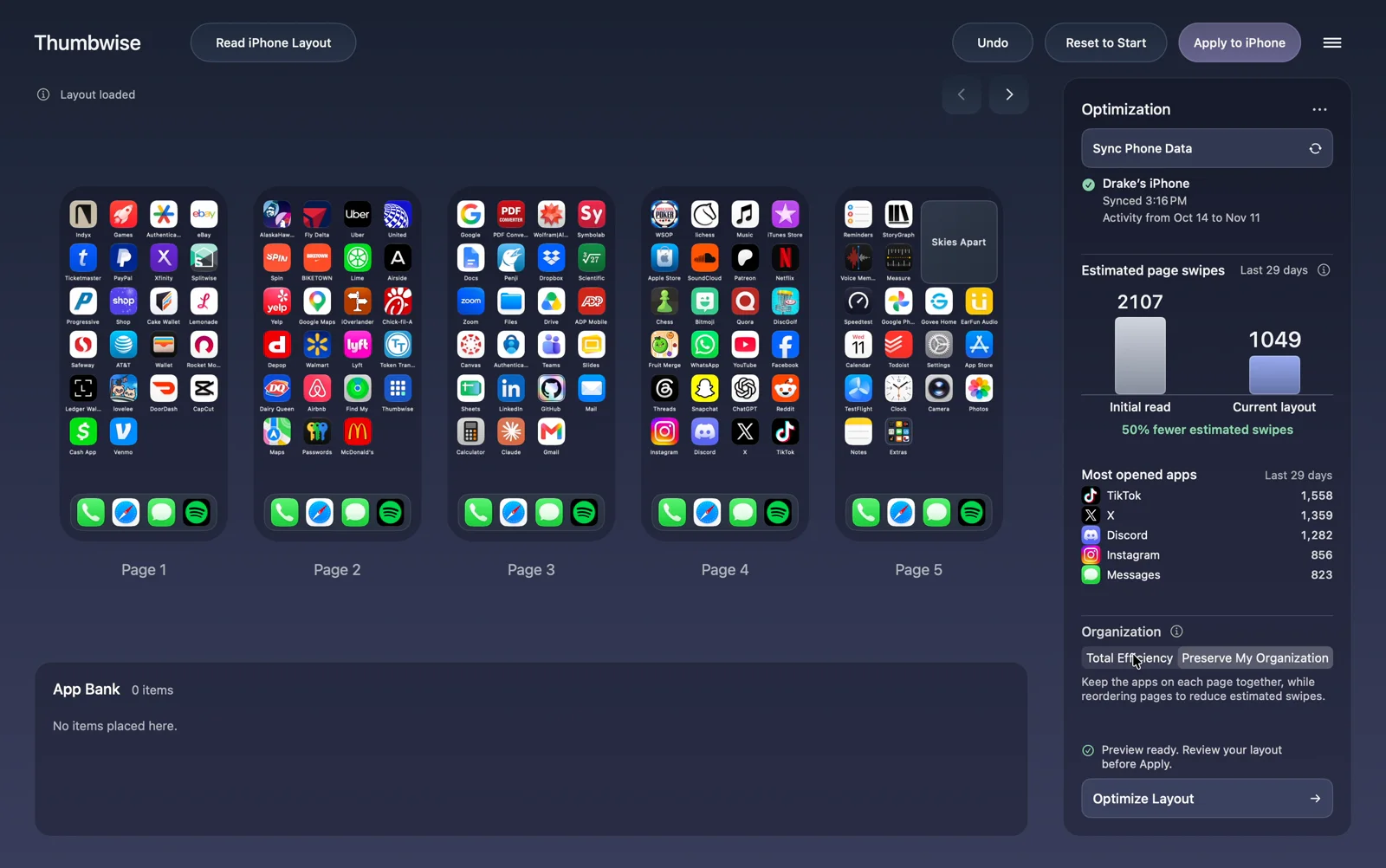
Page swipes are estimated from your own activity, so the result doesn’t promise you’ll save a set amount of time. Your activity stays on your Mac, but what your assistant reads can go to its AI provider. How sorting by use works.
Things you can ask for
Ask in plain words. Some examples:
- “Sort my apps by icon color, like a rainbow.”
- “Spell my name across my pages with my app icons.”
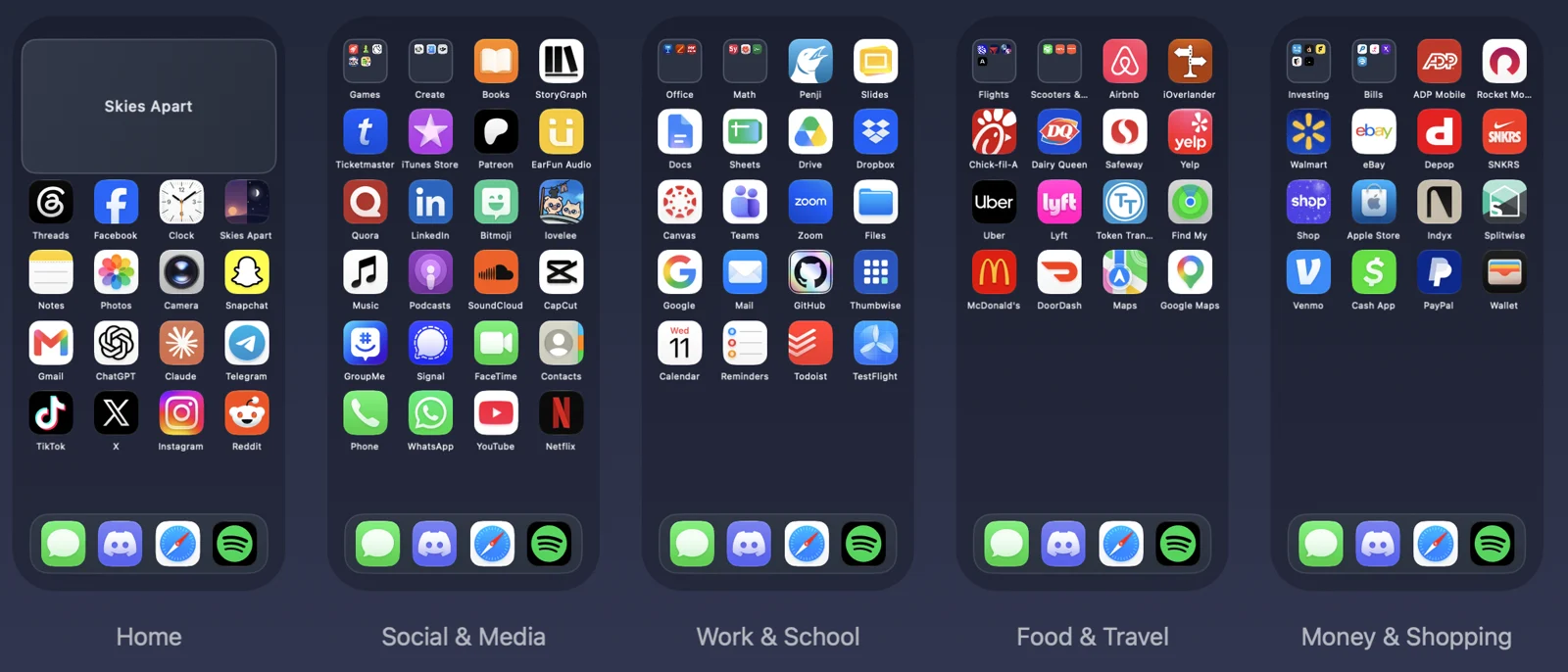
- “Make one page per category: social, work, food and travel, money.”
- “Put my work apps and my personal apps on separate pages.”
- “Make my first page minimal, with only the apps I open every day.”
- “Put every app I haven’t opened in 30 days into one folder on my last page.”
- “Merge my folders that overlap and give them clear names.”
- “Undo that last change.”
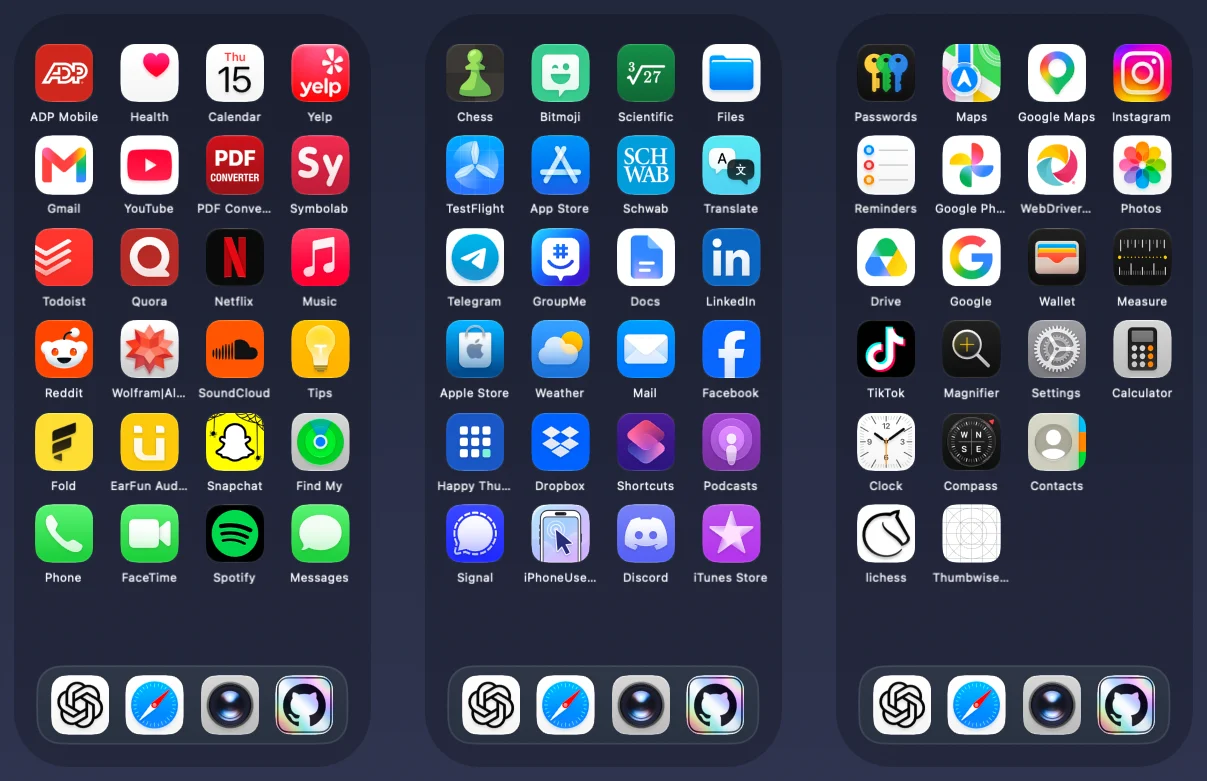
Prefer a one-click sort by how much you use each app? See how to organize iPhone apps automatically.
How to set it up
Thumbwise is a free download for Mac.
-
Turn on AI Integration
In Thumbwise, open AI Integration from the Help menu and turn on Allow local AI client connections. It stays off until you do.
-
Connect your assistant
Pick Claude or Codex in AI Integration and copy the setup it shows you. Then start a new chat. Full setup steps.
-
Read your iPhone and ask
Read your iPhone into Thumbwise, and click Sync Phone Data if you want your usage included. Then tell your assistant what you want. It builds the layout as a draft you can see on your Mac.
-
Review, then Apply
Look over the draft, move anything you like, or ask for changes. Your iPhone changes only when you choose Apply, or when you’ve told your assistant to apply that exact draft. Thumbwise saves your old layout first.
Questions
Can Apple Intelligence organize my Home Screen?
Apple’s guides describe no feature that rearranges your Home Screen pages for you. The App Library sorts itself, but your pages stay where you put them.
Which AI assistants work with Thumbwise?
Claude (the Mac app or Claude Code) and Codex have setup built into Thumbwise. Other MCP clients that run local servers can use the same command. Claude in a web browser can’t connect.
Can the AI change my iPhone without asking?
No. It works on a draft in Thumbwise. Your iPhone changes only when you choose Apply, or when you’ve told your assistant to apply that exact draft.
Does my data go to the AI company?
What your assistant reads, such as your layout, icons and usage, can be sent to its AI provider under that provider’s terms. Thumbwise itself doesn’t upload your layout to a Thumbwise server.
Try it free
Thumbwise, its AI Integration and every draft are free. Applying a layout to your iPhone costs $14.99 USD once, with no subscription. One personal license covers up to 3 active Macs at a time. Your AI assistant is billed separately by its provider.
You need a Mac with Apple silicon and macOS 15 or later, an iPhone on iOS 27, and a USB data cable. iPad and iPhone Duo aren’t supported. Thumbwise is not affiliated with, endorsed by or sponsored by Apple Inc.