 Thumbwise
Organize your apps
How to organize apps on iPhone
Touch and hold an empty spot on your Home Screen until the apps jiggle. Then drag apps where you want them, drop one onto another to make a folder, and tap the checkmark when you’re done. For a big reorganize across many pages, Thumbwise lets you do it from your Mac instead.
Want to see it first? Watch the short demo on the homepage.
Updated
Move and rearrange apps
Based on Apple’s steps in Move apps and widgets on the Home Screen.
-
Start editing
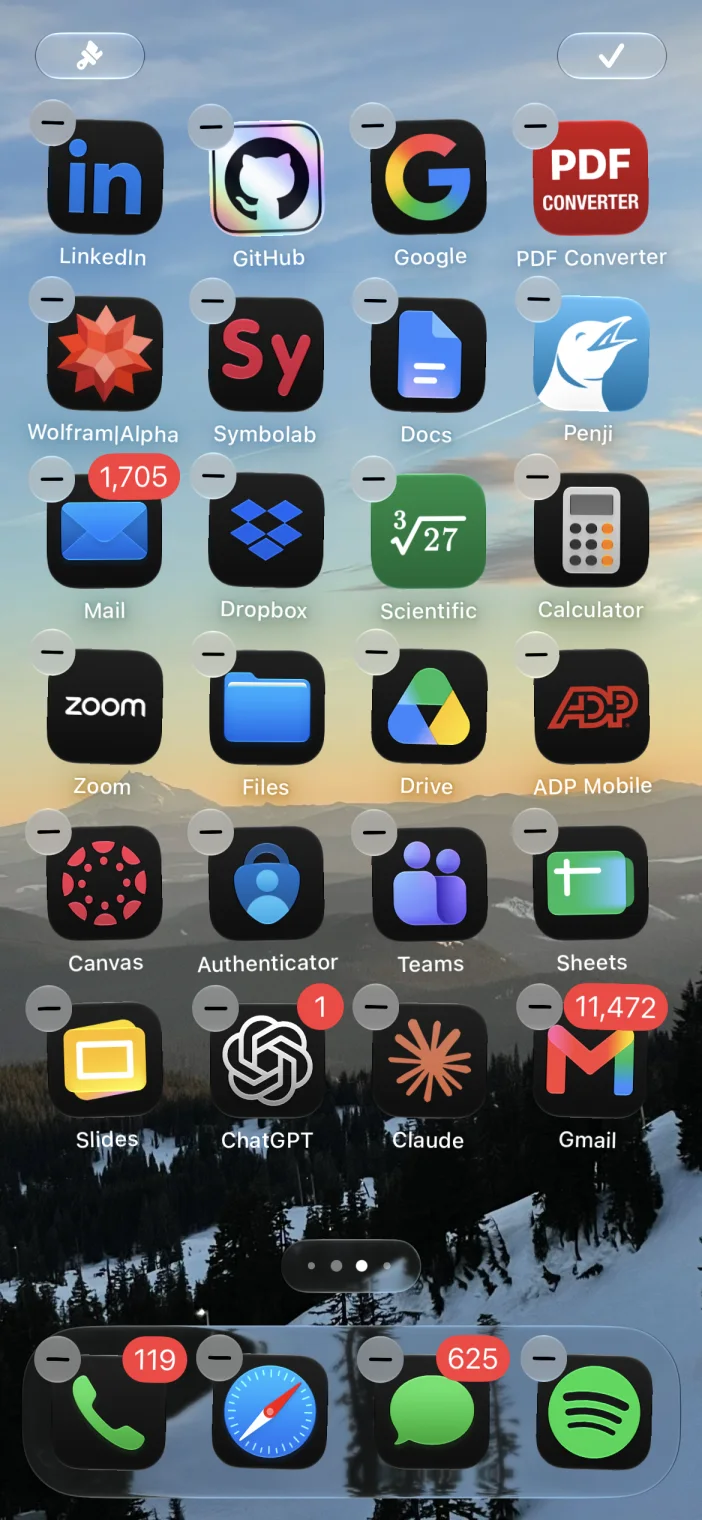
Touch and hold an empty part of the Home Screen until the apps begin to jiggle.
-
Drag an app
Drag it to a new spot on the same page. To move it to another page, drag it to the right edge of the screen and wait for the next page to slide in.
-
Finish
Tap the checkmark at the top right, or tap an empty part of the screen.
Make folders
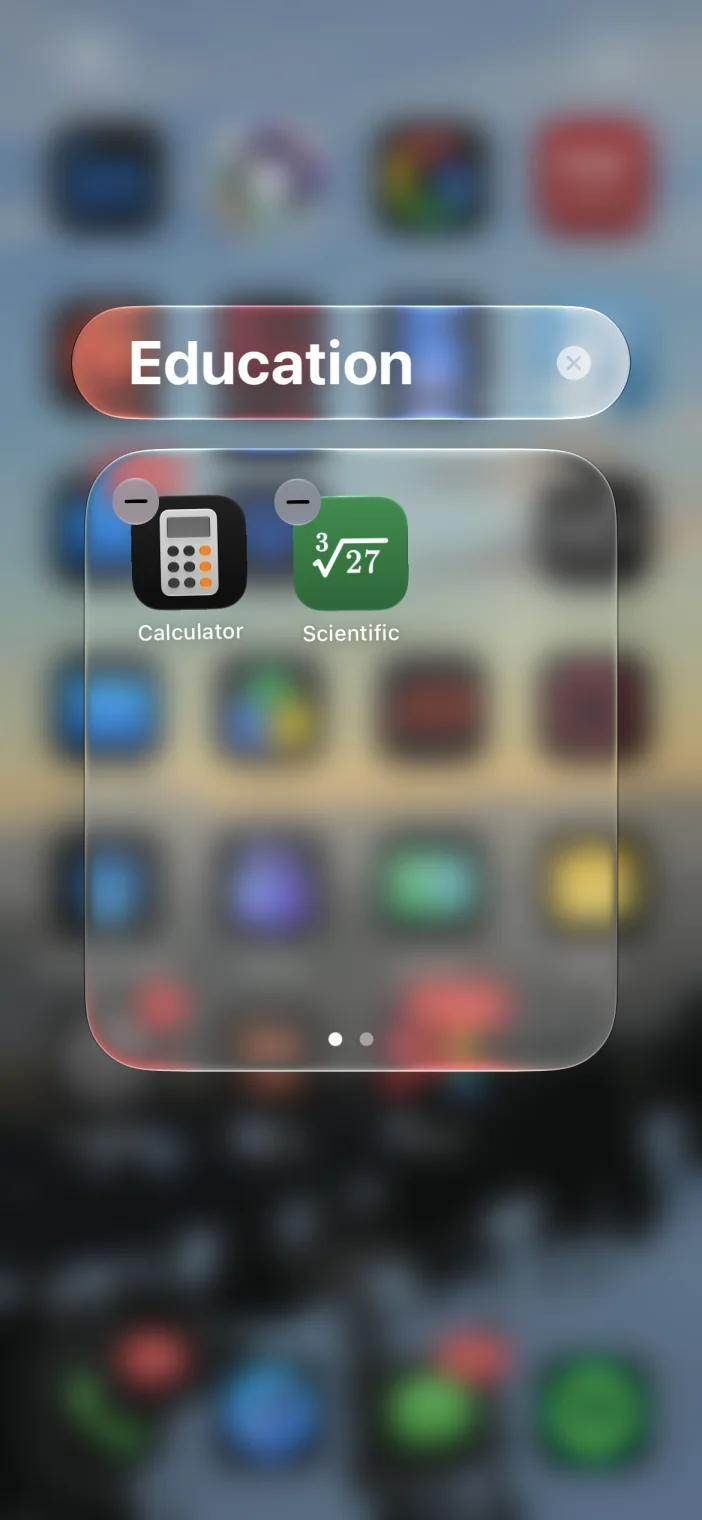
While the apps jiggle, drag one app onto another. iPhone puts both in a new folder. Drag more apps in, or touch and hold the folder to rename it. A folder can have several pages of apps, and it disappears when you drag the last app out. Apple’s folder steps.
Reorder or hide whole pages
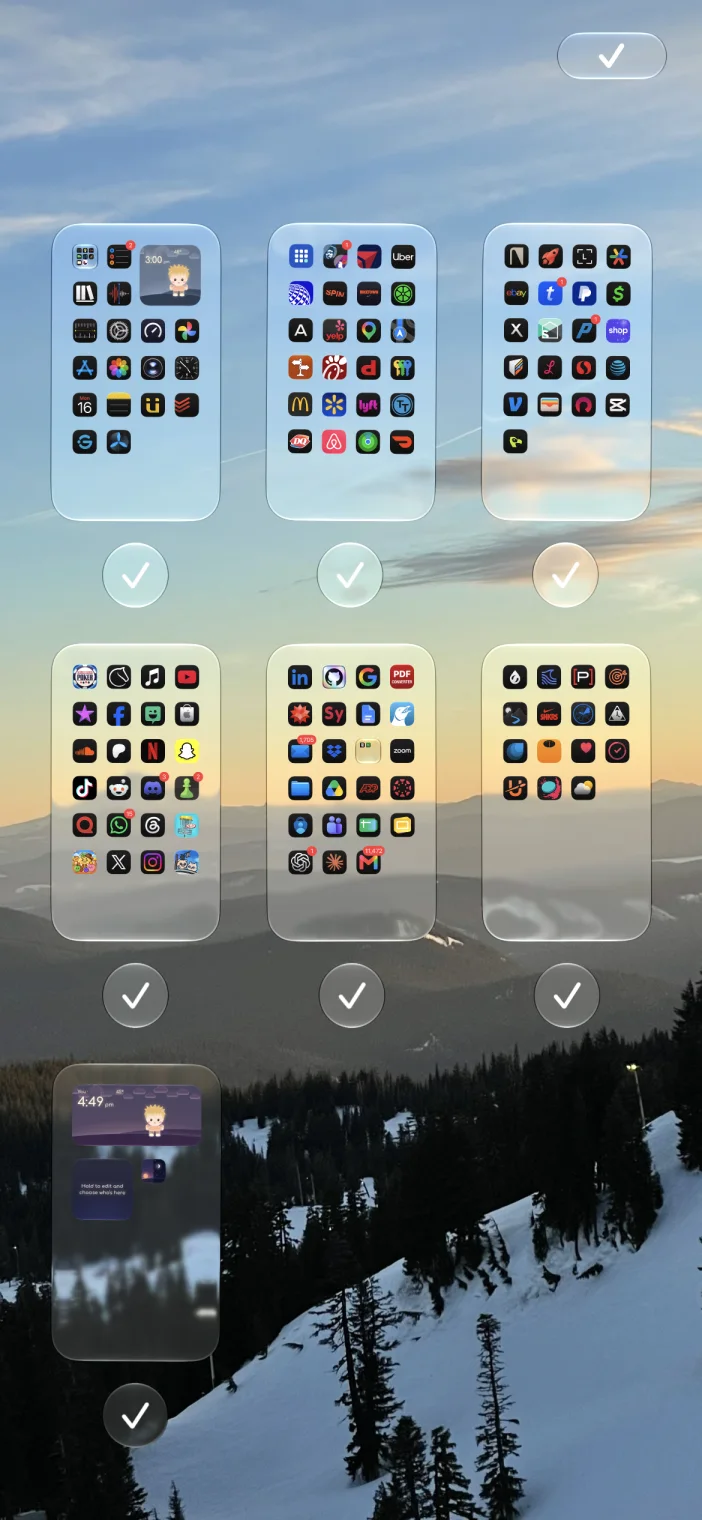
While the apps jiggle, tap the dots above the Dock. You’ll see every page as a small thumbnail with a checkmark. Touch and hold a page and drag it to change the order. Tap a checkmark to hide that page; its apps stay in the App Library. Apple’s page steps.
A few more tips
- Move several apps at once. This isn’t in Apple’s guide. A common tip: start dragging one app, then tap other apps with another finger to add them to the stack. More ways to rearrange faster.
- Keep new apps off your pages. In Settings > Home Screen & App Library, choose App Library Only. New downloads then stay in the App Library.
- Start over. Settings > General > Transfer or Reset iPhone > Reset > Reset Home Screen Layout puts Apple’s apps back where they started and lists your other apps alphabetically after them. It also removes every folder you made, so it’s a last resort.
Why it’s easier in Thumbwise
- All your Home Screen pages side by side on your Mac’s screen.
- Move an app to any page with one click to pick it up and one to place it. No dragging to the edge and waiting for the page to turn.
- Drag a box around several apps and move them as a group.
- Park apps in App Bank while you decide where they go.
- Undo any change. Nothing on your iPhone changes until you Apply, Thumbwise saves your old layout first, and Restore loads it again for you to Apply.
- If you like, sort your apps by how much you use them.
You can also have an AI assistant do it. In Thumbwise’s AI Integration, turn on Allow local AI client connections, connect Claude or another compatible assistant, and ask it to organize your apps. It arranges a draft for you to look over, and your iPhone changes only when you confirm Apply. How to connect an AI assistant.
How to organize your iPhone apps in Thumbwise
Thumbwise is a free download for Mac. Here’s how it works:
-
Read your iPhone
Connect it with a USB data cable, unlock it and click Read iPhone Layout. Every page shows up side by side.
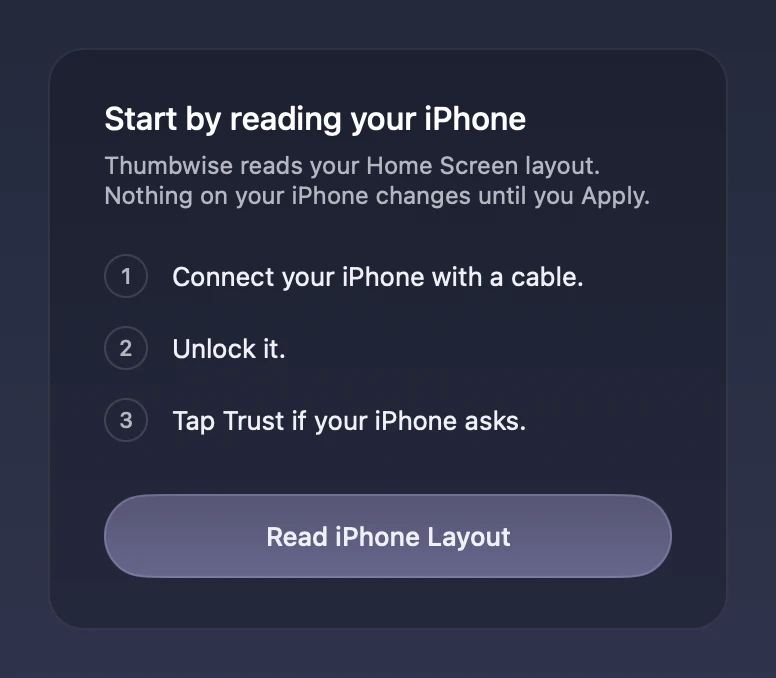
The first screen in Thumbwise. -
Arrange with your mouse or trackpad
Click an app to pick it up and click where it goes. The apps around it stay put. Drag a box to move a whole group.
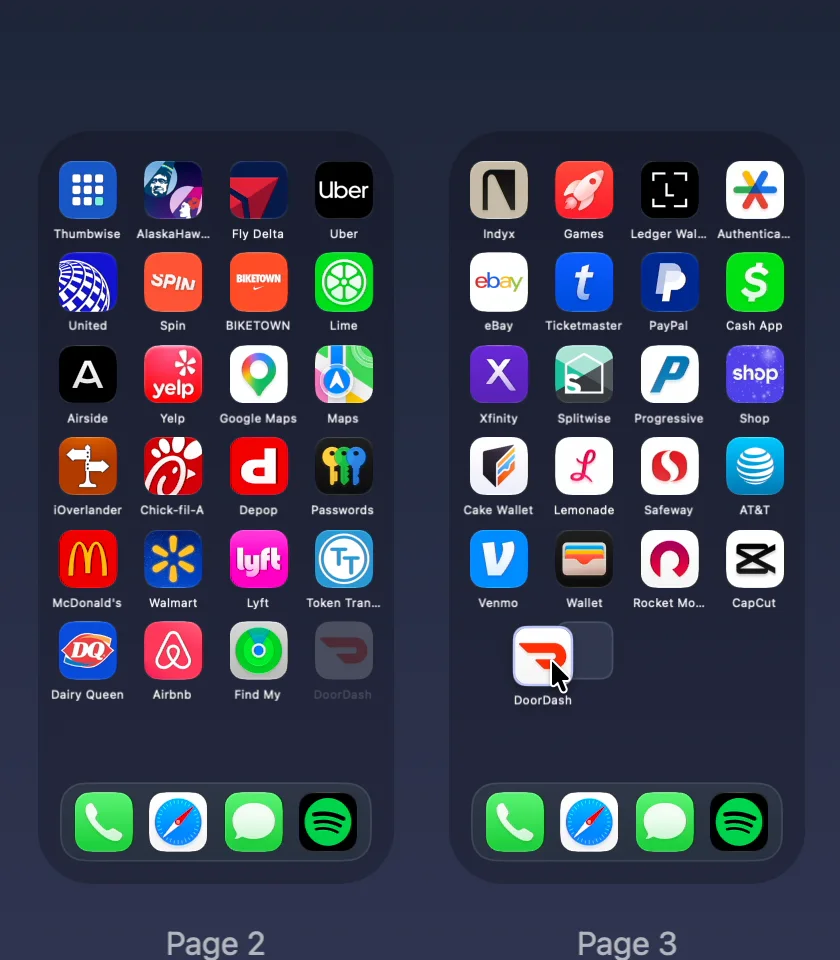
Moving DoorDash from Page 2 to Page 3. -
Apply it to your iPhone
Choose Apply to iPhone. Thumbwise saves your old layout first, and you can bring it back with Restore.
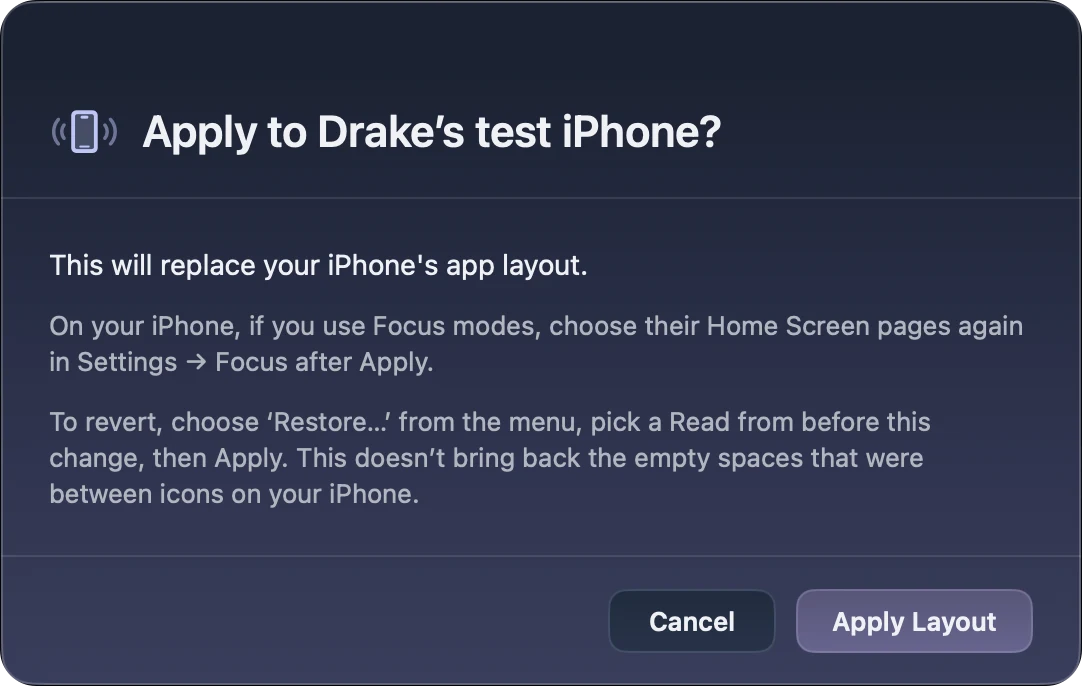
Thumbwise asks before it changes your iPhone.
For every step in detail, see how to organize your iPhone Home Screen on a Mac.
Questions
What’s the best way to organize iPhone apps?
Keep the apps you open every day on your first page and in the Dock. Group the rest in folders by what they’re for, and leave the ones you rarely open in the App Library.
How do I make a folder on iPhone?
While the apps jiggle, drag one app onto another. iPhone makes a folder with both. Drag more apps in, or touch and hold the folder to rename it.
Can I organize my iPhone apps from my computer?
From a Mac, yes, with Thumbwise. Finder and Apple’s Windows app can’t arrange the Home Screen.
Try it free
Reading your iPhone and arranging on your Mac are free. Applying a layout costs $14.99 USD once, with no subscription. One personal license covers up to 3 active Macs at a time.
You need a Mac with Apple silicon and macOS 15 or later, an iPhone on iOS 27, and a USB data cable. iPad and iPhone Duo aren’t supported. The guide and FAQ have more. Thumbwise is not affiliated with, endorsed by or sponsored by Apple Inc.