 Thumbwise
iPhone Mirroring
Can you rearrange iPhone apps with iPhone Mirroring?
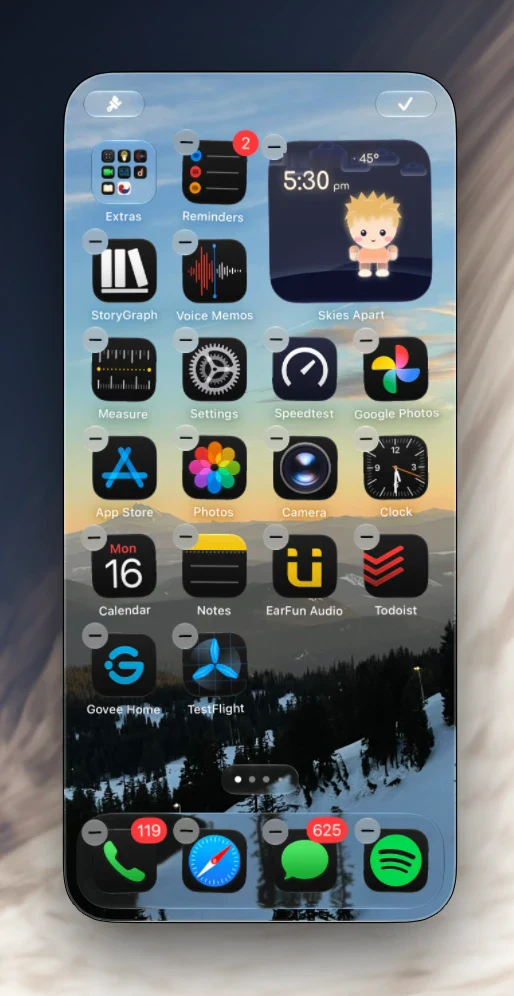
Yes. In iPhone Mirroring, Control-click an app and choose Edit Home Screen, then move apps with your pointer, the same way you would on your iPhone. It’s free and works well for a few apps. For several pages at once, Thumbwise shows them all side by side.
Want to see it first? Watch the short demo on the homepage.
Updated
How to rearrange apps in iPhone Mirroring
-
Open iPhone Mirroring
Open the iPhone Mirroring app on your Mac. Keep your iPhone locked and nearby.
-
Start editing
On the Home Screen, Control-click any app and choose Edit Home Screen. You can also click and hold an empty spot, the way you’d touch and hold on the iPhone.
-
Move apps
Drag apps with your pointer, the same as on your iPhone. When you’re done, click the checkmark at the top right.
Apple’s steps: Use iPhone Mirroring on your Mac and iPhone Mirroring: Use your iPhone from your Mac.
What iPhone Mirroring needs
- A Mac with Apple silicon or the Apple T2 Security Chip, on macOS 15 or later.
- An iPhone on iOS 18 or later, with a passcode.
- Both signed in to the same Apple Account with two-factor authentication, and Wi-Fi and Bluetooth on.
- Your iPhone locked and near your Mac.
- It’s not available in the European Union.
iPhone Mirroring or Thumbwise
| Feature | iPhone Mirroring | Thumbwise |
|---|---|---|
| See your pages | One at a time, at iPhone size | All side by side |
| Move an app to another page | Same as on your iPhone; Apple’s guide doesn’t cover it | Click to pick up, click to place |
| Move a group of apps | Not in Apple’s guide | Drag a box around them |
| Changes | Happen on your iPhone as you go | A draft with Undo, applied when you’re ready |
| Go back | Move everything back by hand | Restore one of your last 5 Reads |
| Connection | Wi-Fi and Bluetooth | USB data cable |
| Price | Free, built in | Free to Read and arrange; $14.99 once to Apply |
How to rearrange your iPhone apps in Thumbwise
Thumbwise is a free download for Mac. Here’s how it works:
-
Read your iPhone
Connect it with a USB data cable, unlock it and click Read iPhone Layout. Every Home Screen page shows up side by side.
-
Arrange
Click an app to pick it up and click where it goes, on any page. Drag a box to move several at once, and park apps in App Bank while you decide.
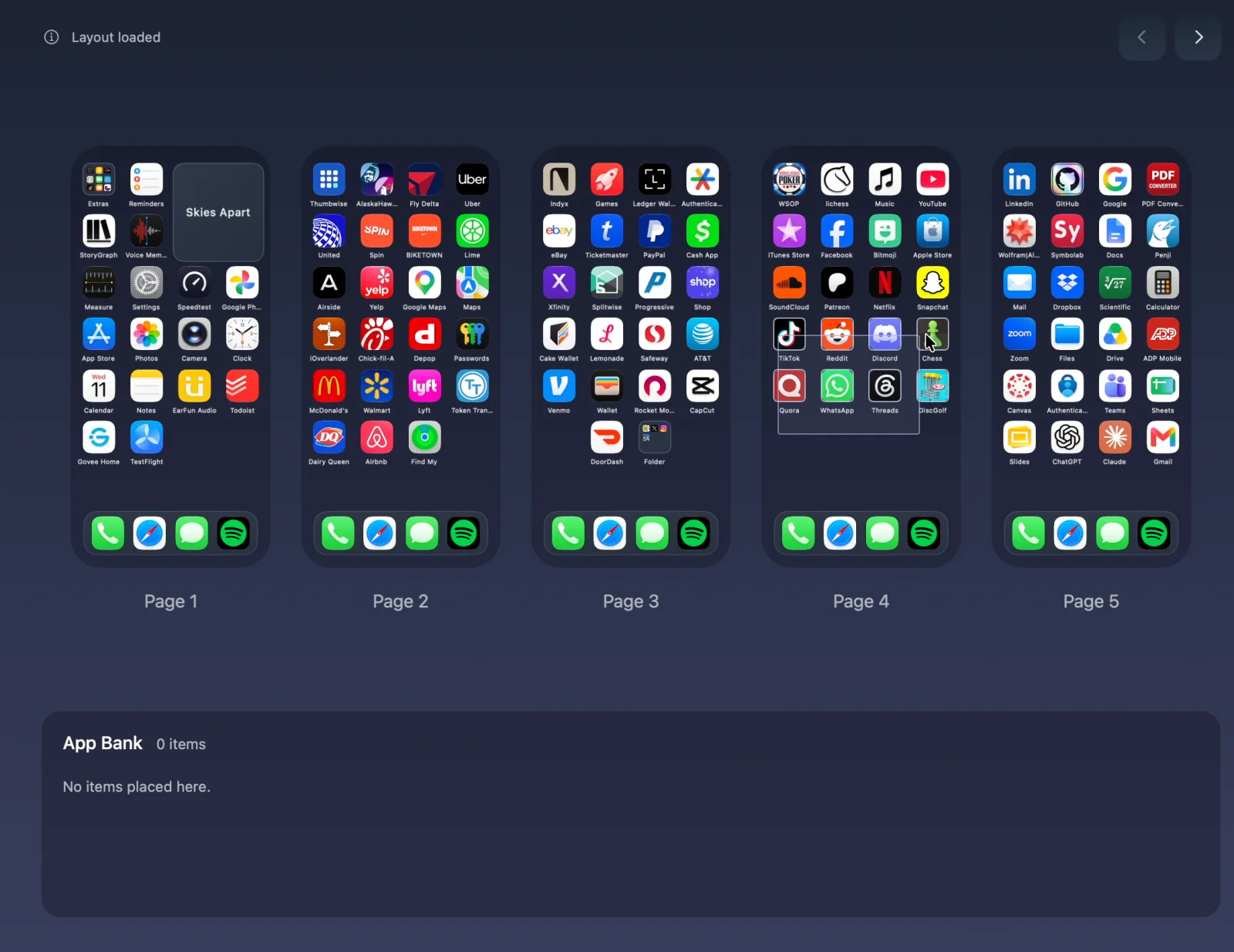
Five pages at once, with eight apps picked up together. -
Apply
Choose Apply to iPhone. Thumbwise saves your old layout first, then checks your iPhone afterward to confirm the change.
Every step in detail: how to organize your iPhone Home Screen on a Mac.
Questions
Does iPhone Mirroring work in the EU?
No. Apple says iPhone Mirroring is currently unavailable in the European Union.
Does my iPhone need to be locked?
Yes. Apple says your iPhone needs to be locked and near your Mac.
Do I need a cable?
Not for iPhone Mirroring. It works over Wi-Fi and Bluetooth. Thumbwise needs a USB data cable.
Can I use both?
Yes. Use iPhone Mirroring for quick changes and Thumbwise when you’re rearranging several pages.
Try it free
Reading your iPhone and arranging on your Mac are free. Applying a layout costs $14.99 USD once, with no subscription. One personal license covers up to 3 active Macs at a time.
You need a Mac with Apple silicon and macOS 15 or later, an iPhone on iOS 27, and a USB data cable. iPad and iPhone Duo aren’t supported. The guide and FAQ have more. Thumbwise is not affiliated with, endorsed by or sponsored by Apple Inc.