 Thumbwise
Rearrange faster
Is there an easier way to rearrange apps on iPhone?
Yes. On your iPhone, pick up several apps at once and swipe pages with your other hand, instead of dragging one app at a time to the edge of the screen. For a big reorganize, Thumbwise lets you do it from your Mac, with every page on screen at once.
Want to see it first? Watch the short demo on the homepage.
Updated
Faster ways on your iPhone
Touch and hold an empty spot on your Home Screen until the apps jiggle. Then:
- Move several apps at once. Start dragging one app, then tap others with another finger. They stack under your finger and move together.
- Swipe pages with your other hand. Keep holding the apps and swipe with another finger, instead of waiting at the edge of the screen.
- Use the Dock as a holding spot. If it has room, drop an app in the Dock, swipe to the page you want, then drag it out.
- Move whole pages. Tap the dots above the Dock, then touch and hold a page and drag it into a new order.
- Hide pages instead of emptying them. In the same view, clear a page’s checkmark. Its apps stay in the App Library.
- Keep new apps off your pages. In Settings > Home Screen & App Library, choose App Library Only.
Apple’s basic steps are in how to organize apps on iPhone.
Why it’s still slow
Your iPhone shows one page at a time. To move an app to another page, you drag it to the edge and wait for the next page to appear, and the apps where you drop it shift to make room. Across five or six pages, that adds up.
The easier way for a big reorganize: your Mac
Thumbwise is a free download for Mac. Here’s how it works:
-
Read your iPhone
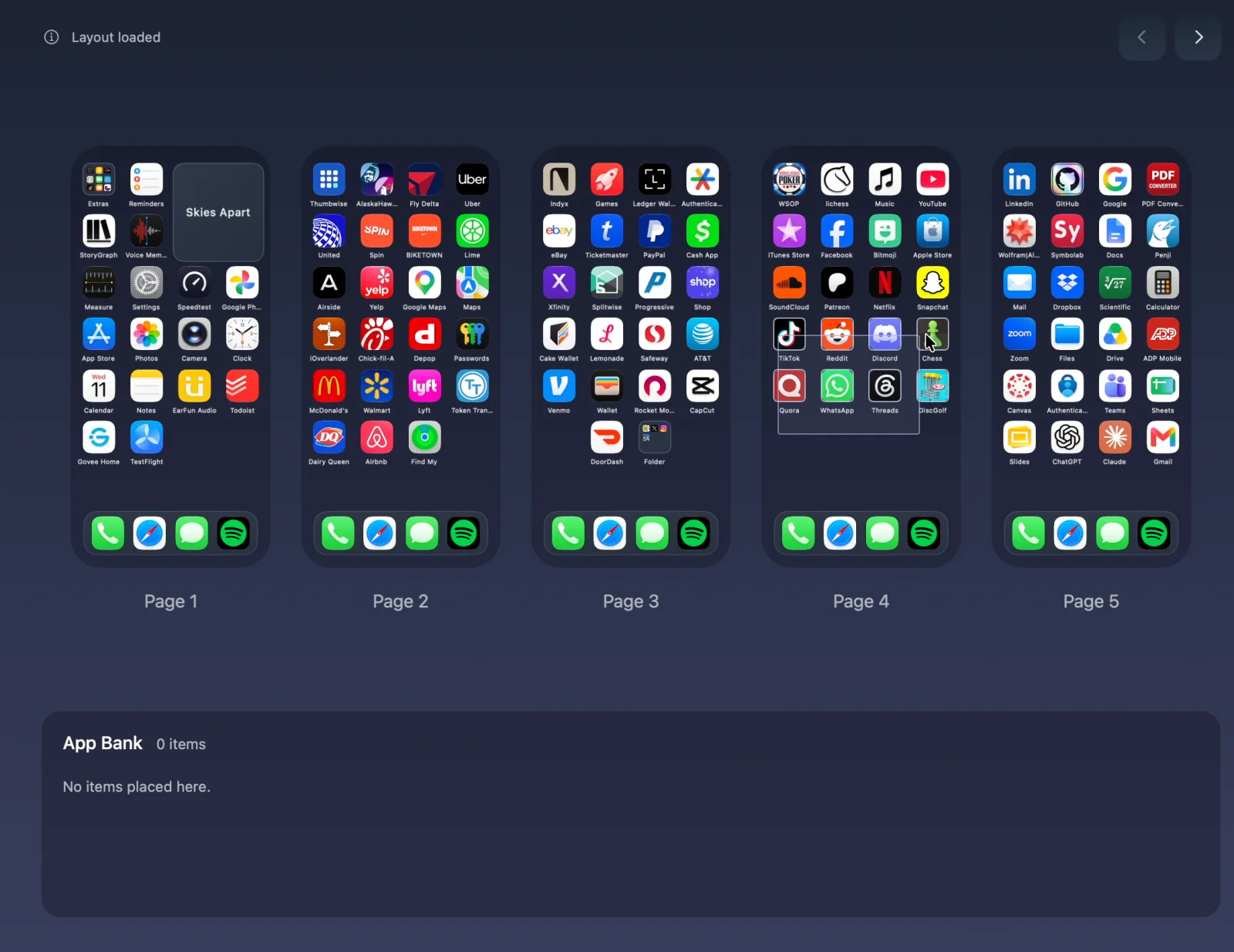
Connect it with a USB data cable, unlock it and click Read iPhone Layout. Every Home Screen page shows up side by side.
-
Move apps in groups
Drag a box around several apps, then click where they go, on any page. For one app, click to pick it up and click to place it. The grid stays put: drop an app on another and the two swap. Park apps in App Bank while you decide, and Undo any step.
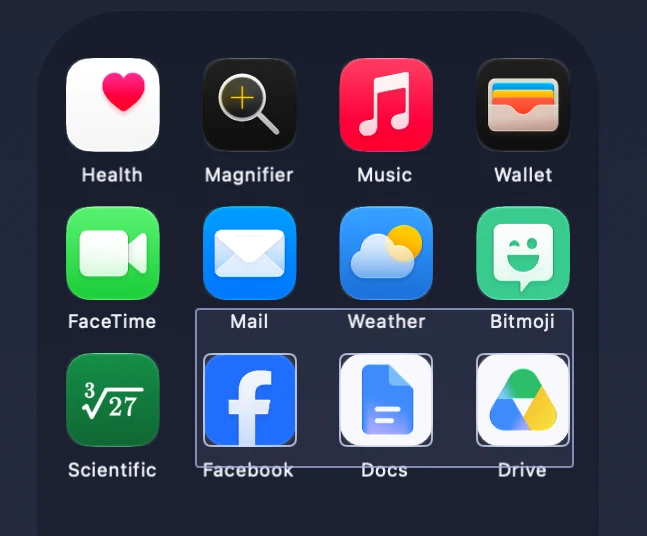
Every app whose icon the box touches is selected. -
Apply it to your iPhone
Choose Apply to iPhone. Nothing on your iPhone changes before that. Thumbwise saves your old layout first, and Restore loads it again for you to Apply.
For every step in detail, see how to organize your iPhone Home Screen on a Mac.
On your iPhone or on your Mac
| Feature | On your iPhone | Thumbwise on your Mac |
|---|---|---|
| See your pages | One at a time | All side by side |
| Move to another page | Drag to the edge and wait | Click to pick up, click to place |
| Move a group of apps | Hold one, tap the others | Drag a box around them |
| The other apps | Shift to make room | Stay where they are |
| Price | Free | Free to Read and arrange; $14.99 once to Apply |
iPhone Mirroring also lets you edit from your Mac, one page at a time. How it compares.
Questions
Can you move multiple apps at once on iPhone?
Yes. While the apps jiggle, start dragging one app and tap the others with another finger. They stack under your finger and move together.
How do I move an app without moving the others?
On the iPhone, the apps around it shift to make room. In Thumbwise the grid stays put: an app goes into an empty spot, or swaps places with the app already there.
Can I edit my iPhone Home Screen on a Mac?
Yes, with Thumbwise. Read your iPhone over a USB data cable, arrange every page on your Mac, then Apply. Here’s every step.
Try it free
Reading your iPhone and arranging on your Mac are free. Applying a layout costs $14.99 USD once, with no subscription. One personal license covers up to 3 active Macs at a time.
You need a Mac with Apple silicon and macOS 15 or later, an iPhone on iOS 27, and a USB data cable. iPad and iPhone Duo aren’t supported. The guide and FAQ have more. Thumbwise is not affiliated with, endorsed by or sponsored by Apple Inc.