 Thumbwise
Layout ideas
iPhone Home Screen layout ideas
Five layouts that work: your most used apps first, one page per part of your life, one folder per job, a quiet first page, or apps sorted by color. You don’t have to rebuild your iPhone to find out which one suits you. Thumbwise lets you try each one on your Mac, see every page at once, and apply only the one you like.
Want to see it first? Watch the short demo on the homepage.
Updated
5 layout ideas
1. Your most used apps first
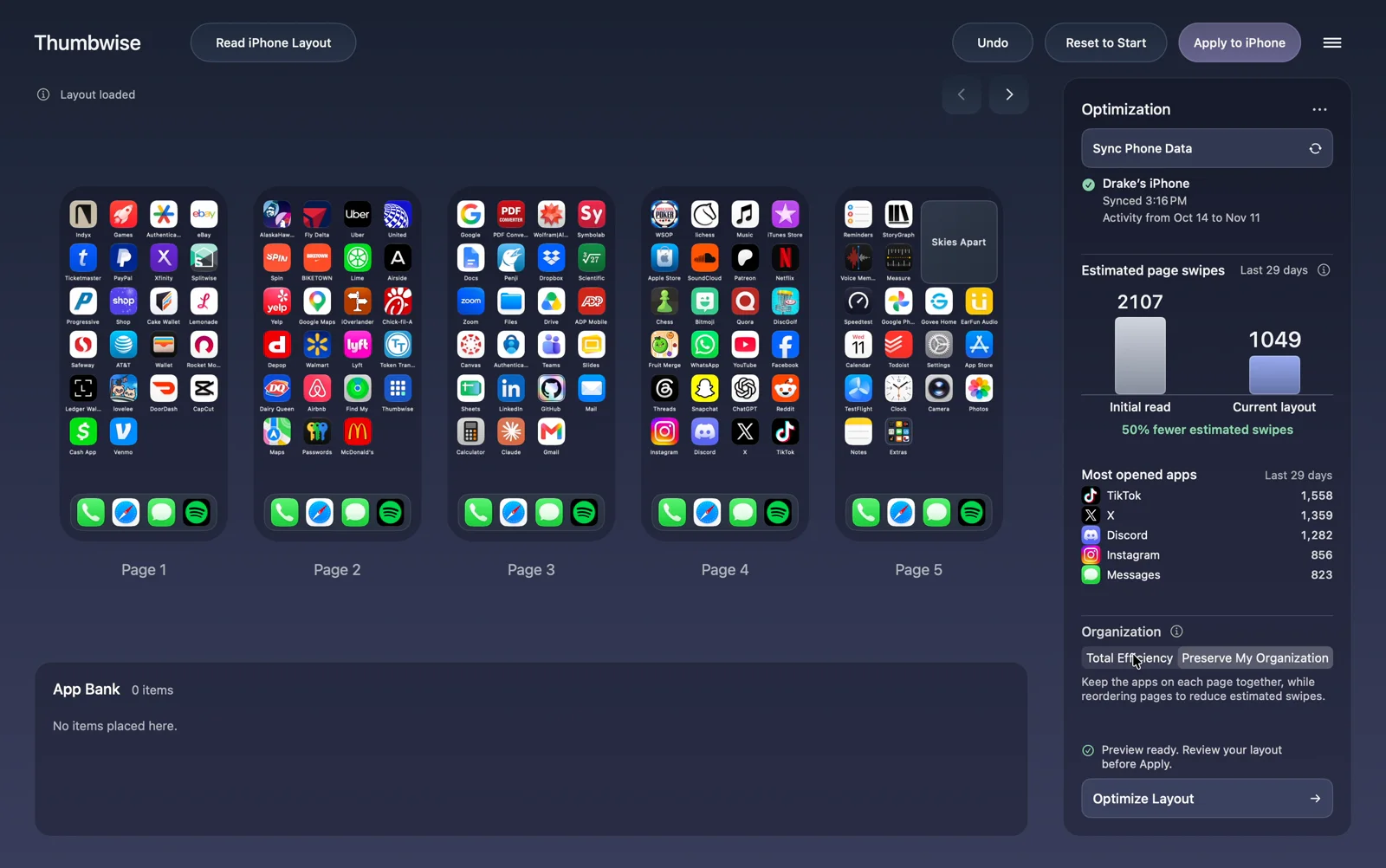
The apps you open most go on the first page and in the Dock, and the rest go further back, so you swipe less. Choosing them by hand means guessing. Thumbwise’s Optimize works it out from the apps you opened on your iPhone over the last 30 days. It arranges your pages for fewer estimated page swipes, and on each page the apps you use most go last, toward the bottom. It needs your iPhone’s Screen Time activity on your Mac. How sorting by use works.
2. One page per part of life
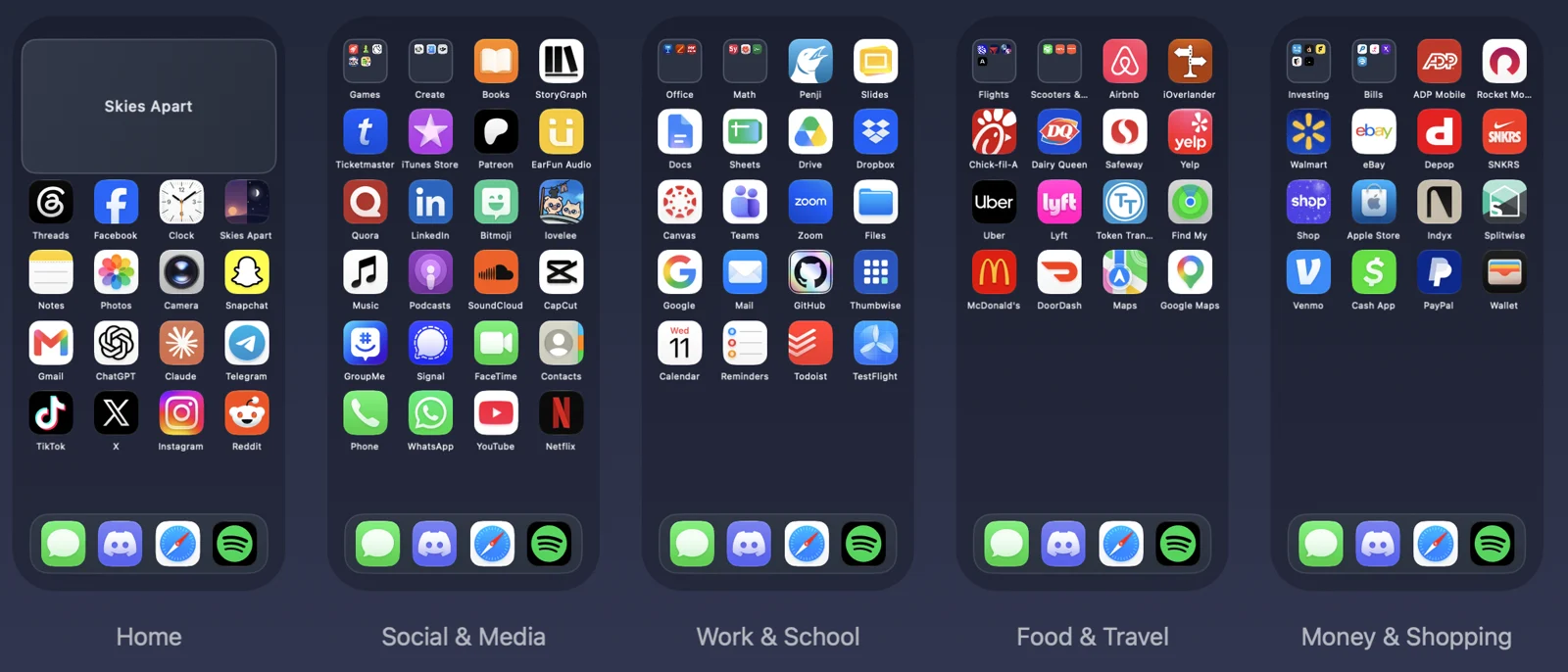
Home, social, work, food and travel, money: each gets its own page, so you know which way to swipe. In Thumbwise you can name each page while you sort, like the layout at the top of this page. Your iPhone doesn’t show page names, so they’re just for you on your Mac. You can also ask an AI assistant connected to Thumbwise for one page per category. How that works.
3. One folder per job
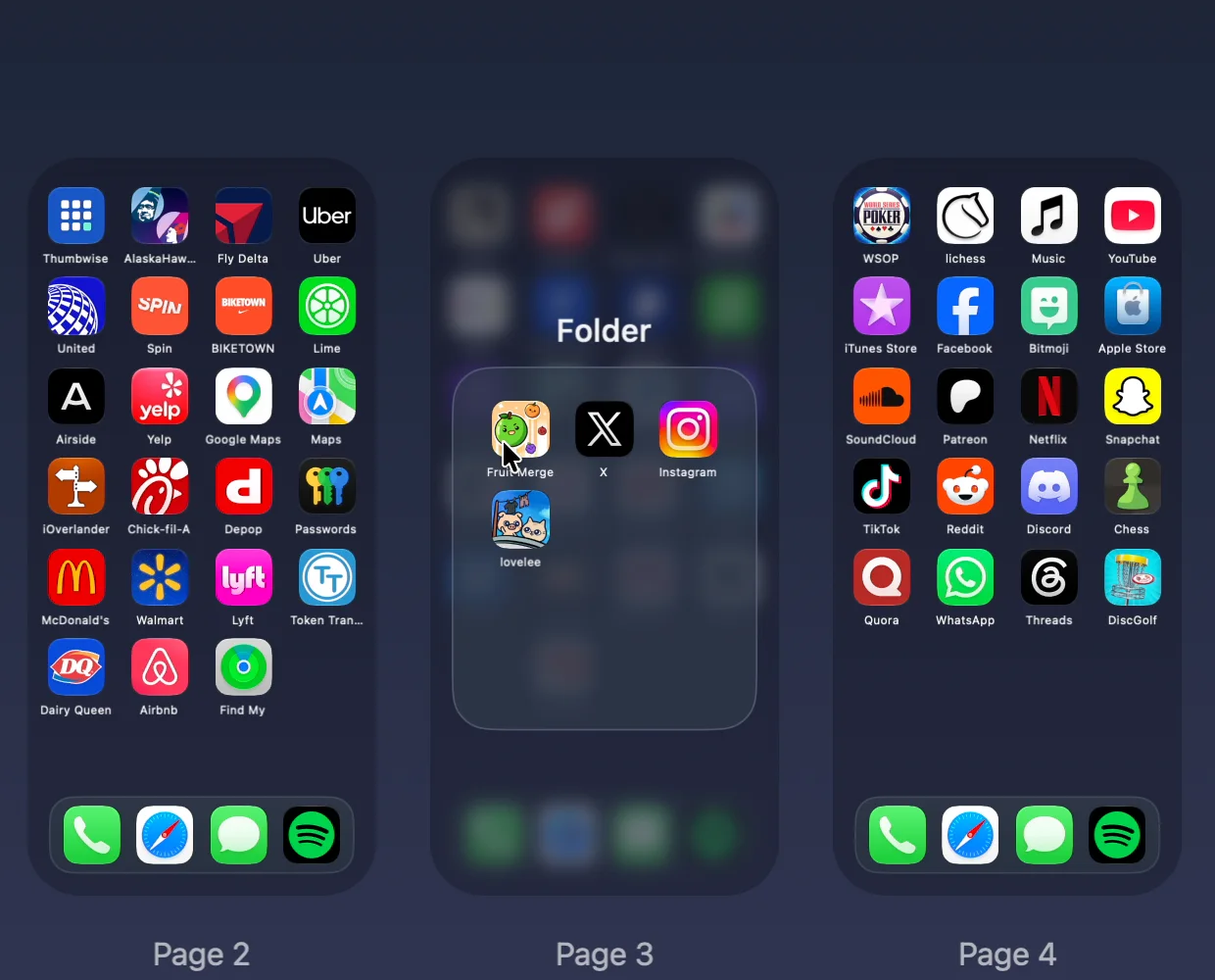
Put apps in folders named for what you do with them, like Pay, Travel, Photos or Read. A page of folders can hold every app you have. In Thumbwise, right-click an empty spot and choose Create Folder, then move apps into it. Folders stay whole when Optimize moves them.
4. A quiet first page
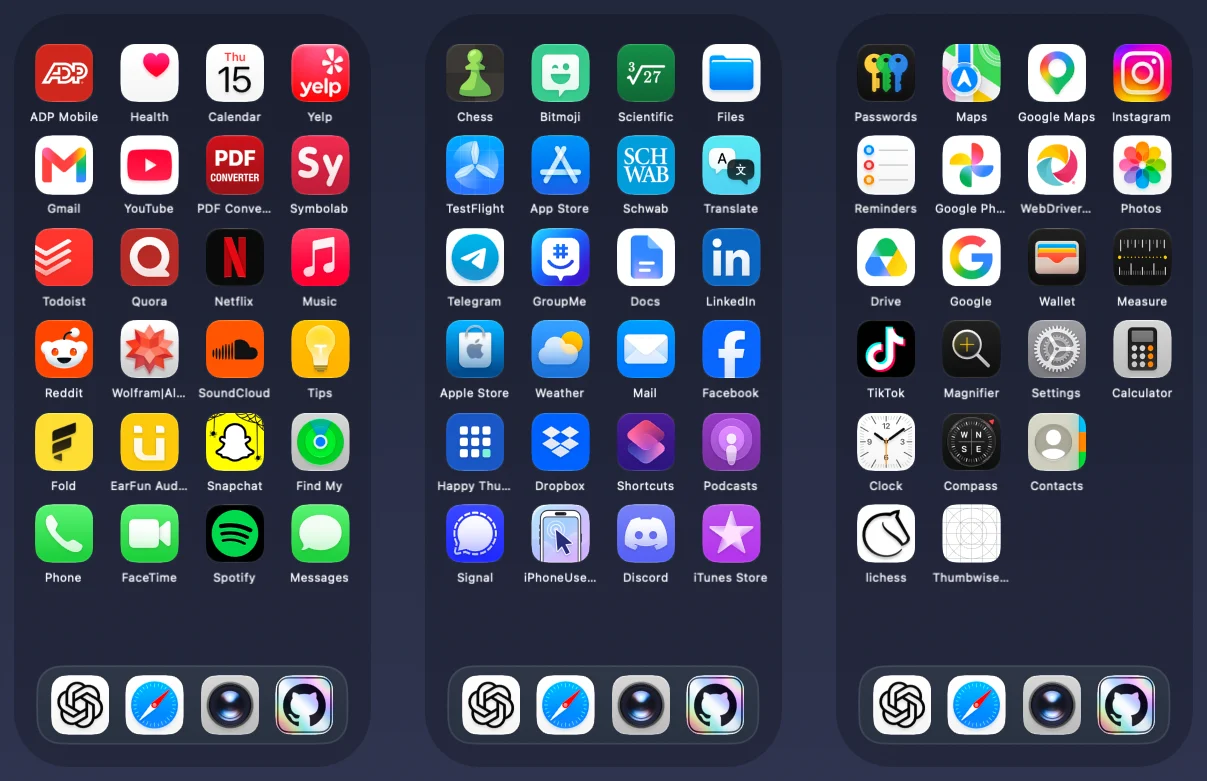
Just a few apps on the first page, with empty space around them, and everything else further back. In Thumbwise an empty spot stays empty until you put something there, and Apply writes the page the way you see it. Two things to know: a Read packs your apps together from the top left, because the iPhone doesn’t report its empty spots, and every app needs a spot on a page, in a folder or in the Dock. To keep an app only in the App Library, remove it from the Home Screen on your iPhone before you Read.
5. Sorted by color
Pages or rows that go from red to purple. It looks good, but you find apps by color instead of by name. Thumbwise doesn’t sort by color itself. Ask a connected AI assistant to sort your apps by icon color, then look over the draft.
How to try them in Thumbwise
Thumbwise is a free download for Mac. Your iPhone doesn’t change until you Apply:
-
Read your iPhone
Connect it with a USB data cable, unlock it and tap Trust if it asks. Then click Read iPhone Layout. Every Home Screen page shows up side by side.
-
Try an idea
Arrange it by hand (click to pick up, click to place), run Optimize, or ask an AI assistant. It’s all a draft on your Mac. Undo goes back one change at a time, and Reset to Start puts the draft back to your iPhone’s layout so you can try the next idea.
-
Apply the one you like
Choose Apply to iPhone and confirm with Apply Layout. Thumbwise saves a copy of your old layout first, then reads your iPhone back to check that everything landed where you put it.
-
Go back if you change your mind
Thumbwise keeps your last 5 Reads. Pick one in Restore… to load it, then Apply it.
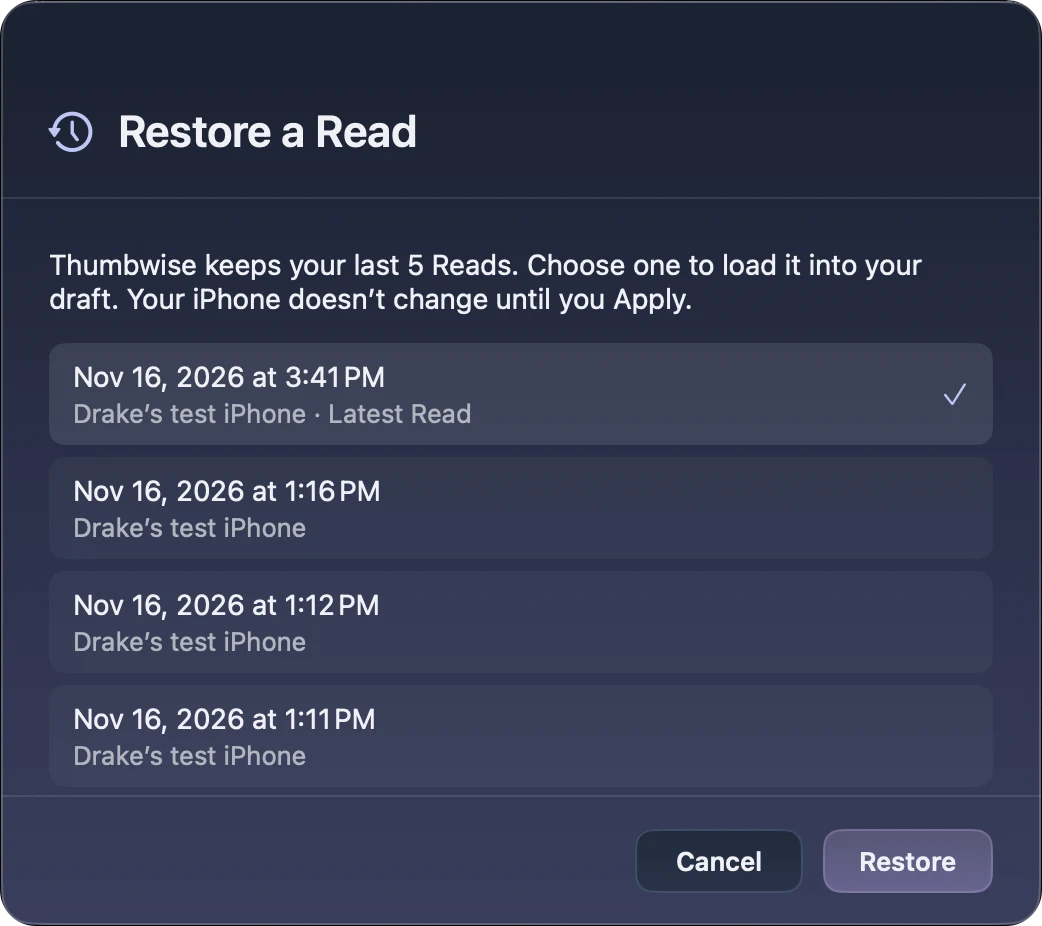
Each Read is listed with its date and time.
Trying a layout on your iPhone or in Thumbwise
| Feature | On your iPhone | Thumbwise on your Mac |
|---|---|---|
| See the result | One page at a time, as you go | Every page side by side |
| Try another idea | Move everything back by hand, or Reset Home Screen Layout, which removes your folders | Reset to Start, then try again |
| Most used first | Guess from Screen Time | Optimize, from your activity |
| Price | Free | Free to Read and arrange; $14.99 once to Apply |
Apple’s steps for moving apps on the iPhone are in how to organize apps on iPhone.
Questions
What is the best way to arrange iPhone apps?
There’s no one best layout. Putting the apps you use most on the first page and in the Dock cuts down on swiping. The rest comes down to what you find easy to remember.
Do these ideas work on iOS 26 and iOS 27?
You can build any of them by hand on either one. To try them in Thumbwise, your iPhone needs iOS 27.
Can I copy my layout to another iPhone?
Not with Thumbwise. It applies a layout only to the iPhone it was read from.
Try it free
Reading your iPhone, trying layouts, Optimize and the AI assistant are free. Applying a layout costs $14.99 USD once, with no subscription. One personal license covers up to 3 active Macs at a time.
You need a Mac with Apple silicon and macOS 15 or later, an iPhone on iOS 27, and a USB data cable. iPad and iPhone Duo aren’t supported. The guide and FAQ have more. Thumbwise is not affiliated with, endorsed by or sponsored by Apple Inc.