 Thumbwise
For a parent
How to simplify an iPhone Home Screen for an elderly parent
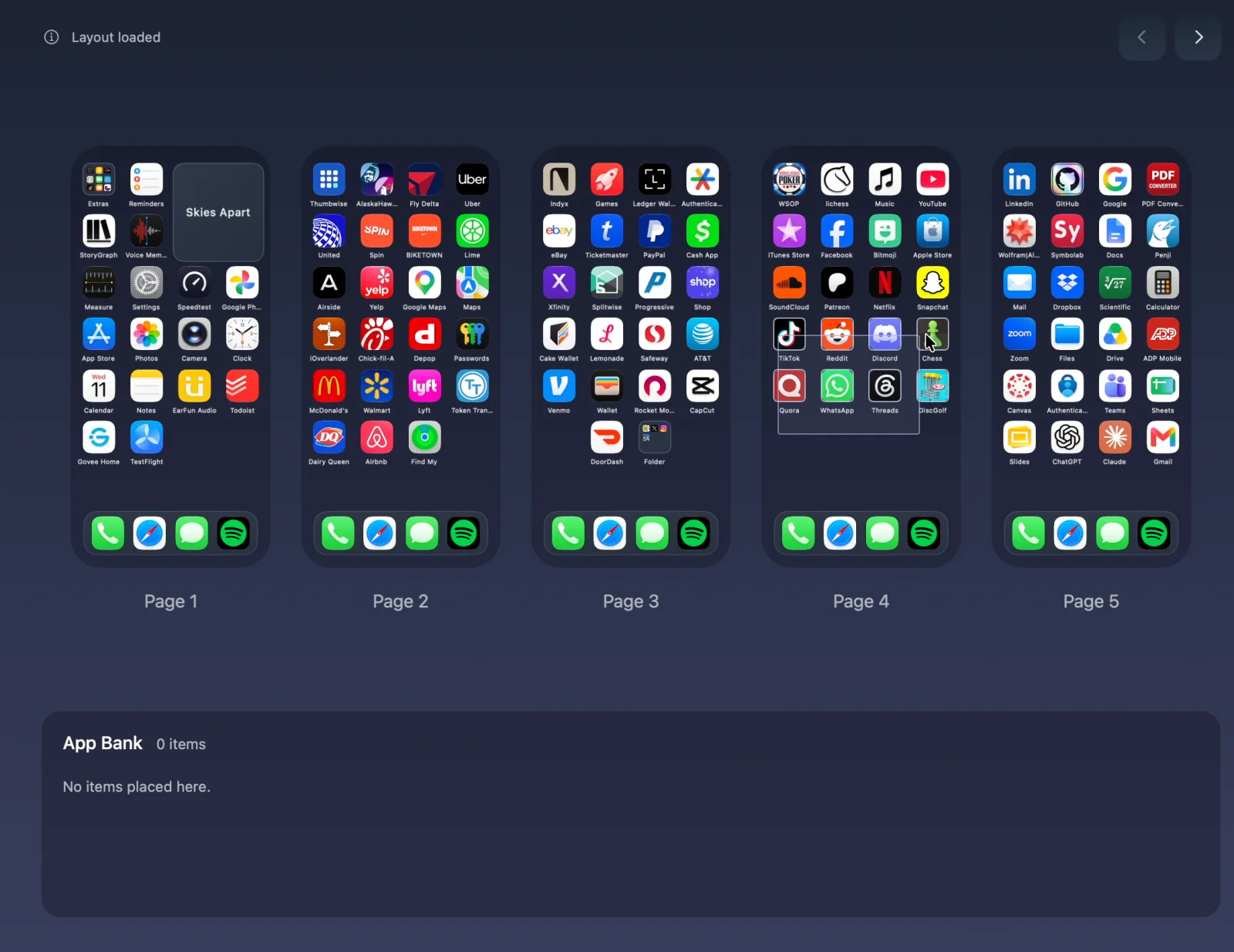
Put the few apps they really use on the first page and in the Dock, move everything else into a folder, and remove the extra pages. On their iPhone that means dragging apps one page at a time. Thumbwise lets you do it on your Mac, with all of their Home Screen pages on screen at once.
Want to see it first? Watch the short demo on the homepage.
Updated
What a simpler Home Screen looks like
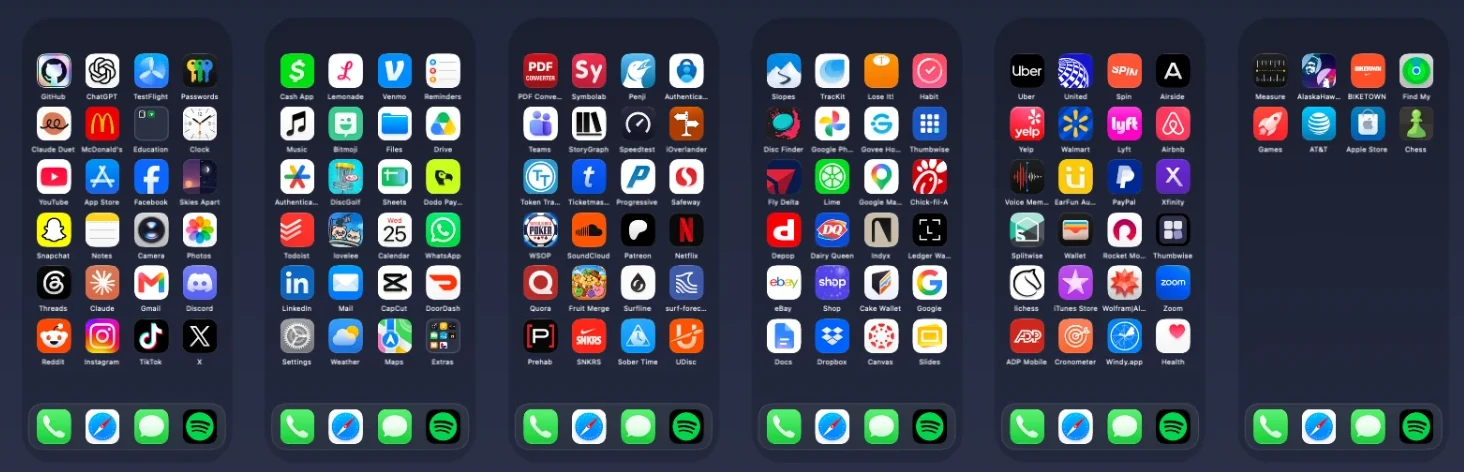
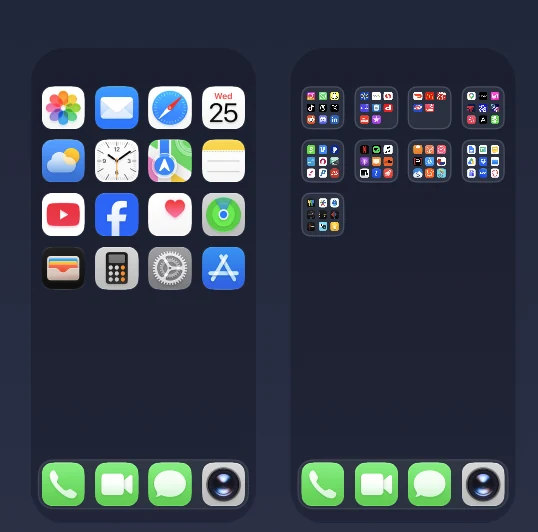
- One page to learn. Phone, Messages, Camera, Photos and the few other apps they open, each in a spot that doesn’t move.
- The top four in the Dock. The Dock shows on every page, so the apps there are always in the same place.
- The rest in folders. A few folders on the second page keep the apps they rarely open out of the way but still there.
- No extra pages. Fewer pages means fewer places for an app to get lost.
- Bigger icons. On their iPhone, touch and hold an empty spot until the apps jiggle, tap Edit, then Customize, and choose the large icon size. App names are hidden at that size, so they’ll go by the icons.
How to do it from your Mac with Thumbwise
Thumbwise is a free download for Mac. Sit down together with their iPhone and your Mac:
-
Read their iPhone
Plug their iPhone into your Mac with a USB data cable. They unlock it and tap Trust if it asks. Then click Read iPhone Layout. Their pages, folders, widgets and Dock show up on your Mac, and their iPhone stays as it was.
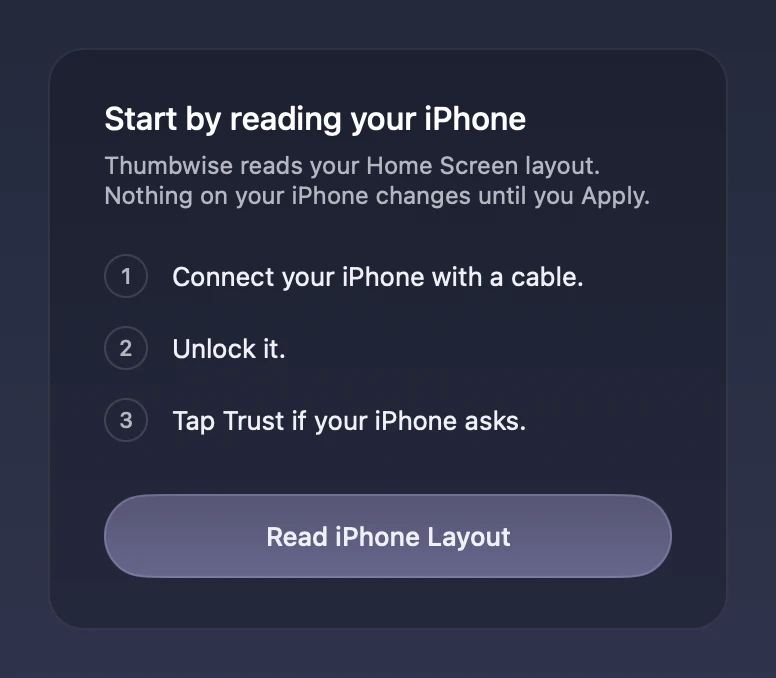
Three things to do on their iPhone, then one button on your Mac. -
Set up the first page and the Dock
Click an app to pick it up and click where it goes. Put the apps they use on the first page and the four they use most in the Dock. The grid stays put: drop an app on another and the two swap, so nothing else moves.
-
Move the rest into a folder
Right-click an empty spot on the second page and choose Create Folder. Then move the apps they rarely open into it. Drag a box around several apps to move them together. A folder can hold more than one page of apps.
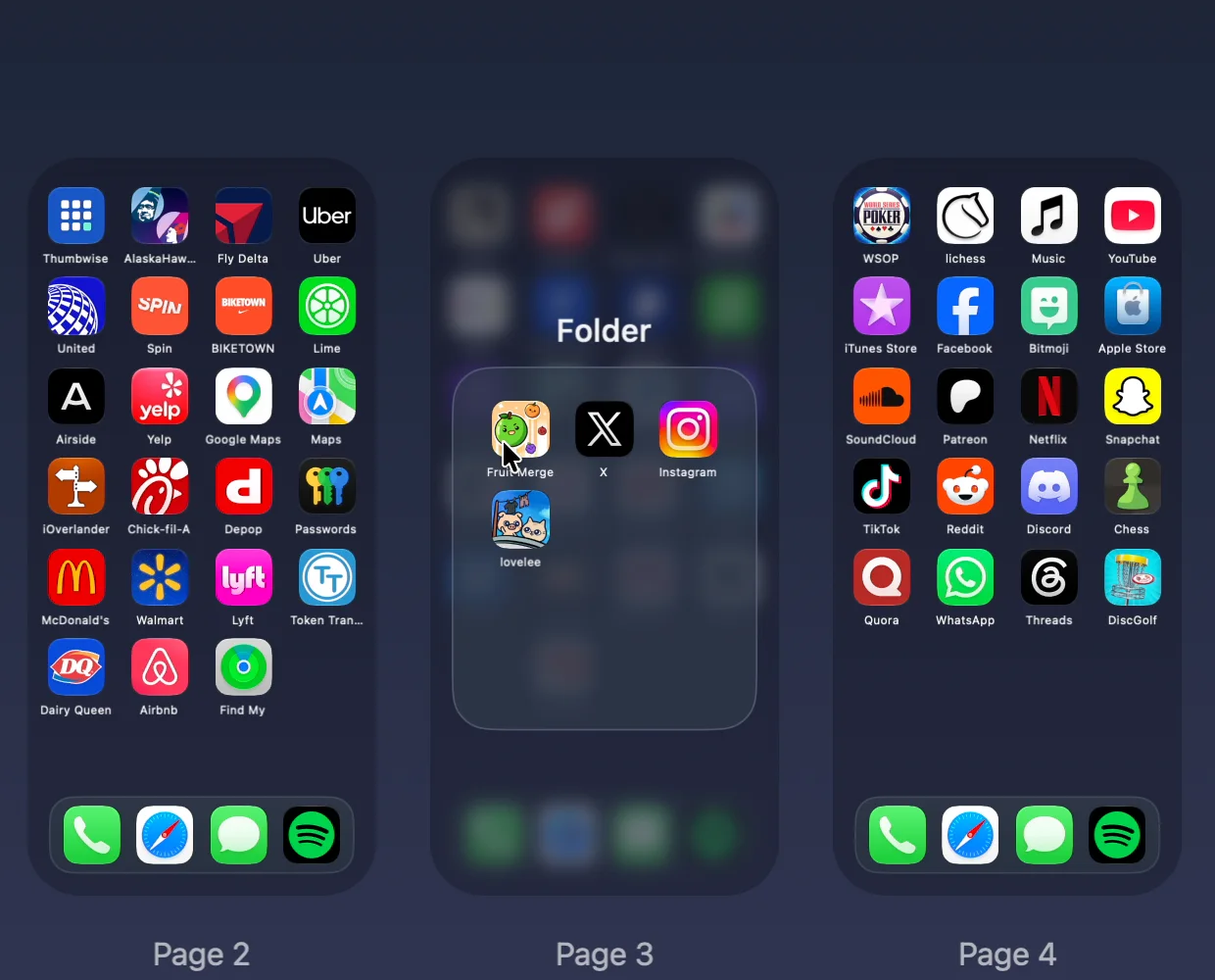
A new folder with four apps in it. -
Remove the empty pages
Right-click each page you emptied and delete it. Thumbwise won’t Apply a blank page.
-
Apply it to their iPhone
Choose Apply to iPhone and confirm with Apply Layout. Thumbwise saves a copy of their old layout first. Afterward it reads their iPhone back and tells you whether everything landed where you put it.
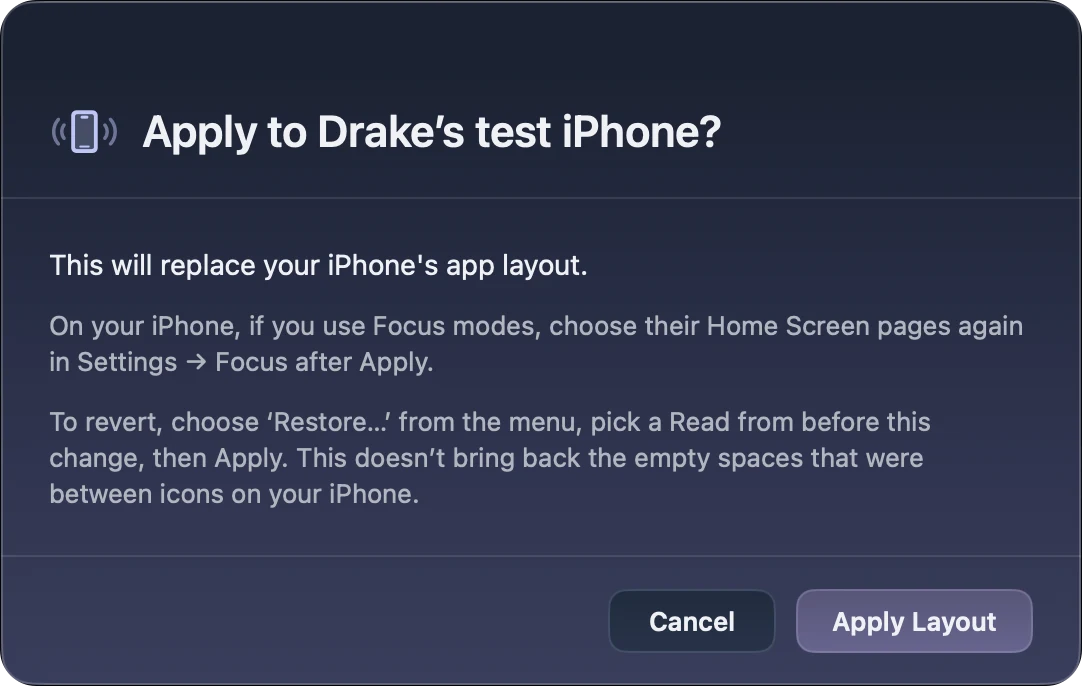
Nothing changes on their iPhone until you click Apply Layout. -
Put it back if they don’t like it
Thumbwise keeps the last 5 Reads. Pick the one from before in Restore… to load it, then Apply it.
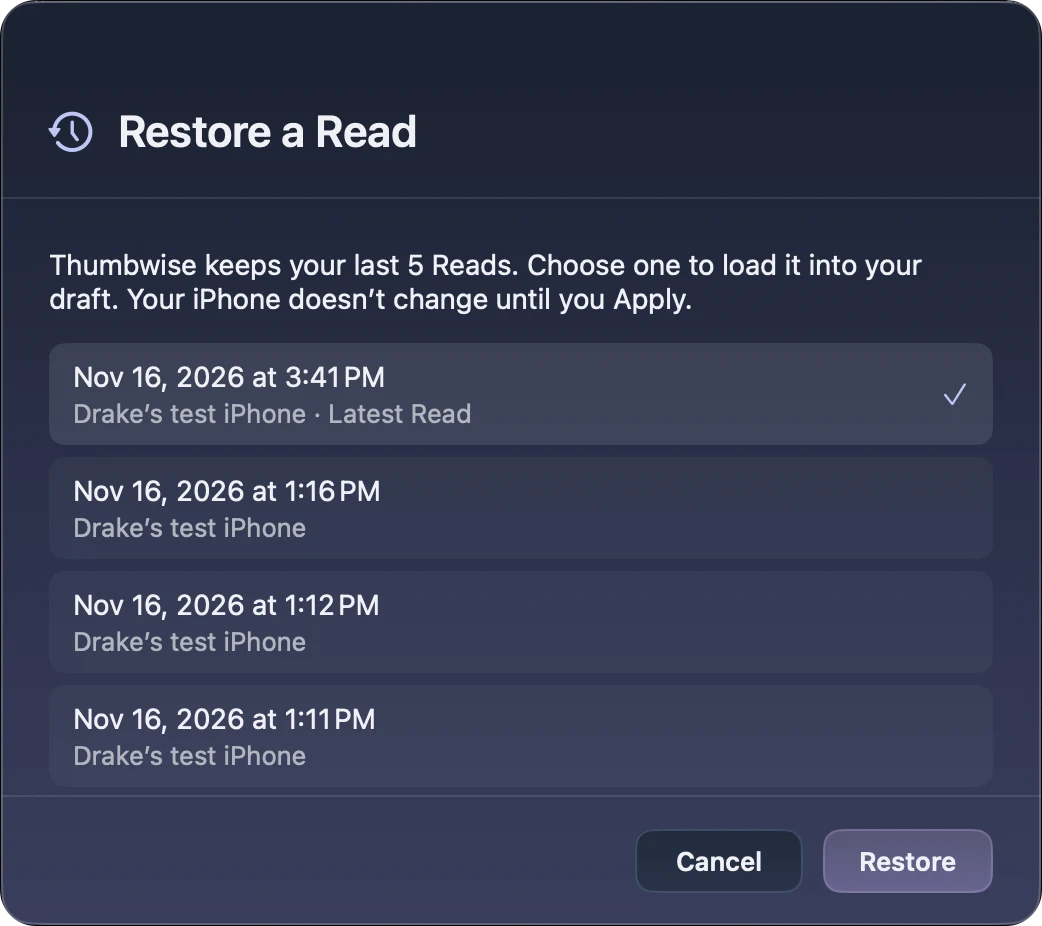
Each Read is listed with its date and time.
Why Optimize won’t help here
Thumbwise can also arrange pages by how often each app is opened. That uses the iPhone’s Screen Time activity, which reaches your Mac only when the iPhone and the Mac use the same Apple Account with Siri in iCloud turned on. If your parent’s iPhone is on their own Apple Account, its activity isn’t on your Mac, so Optimize has nothing to go on. Arrange it by hand from what you know they use. How Optimize works on your own iPhone.
Good to know first
- Their iPhone needs iOS 27.
- Thumbwise moves what’s already there. It doesn’t delete apps, and every app needs a spot on a page, in a folder or in the Dock.
- To take an app off the Home Screen completely, do it on their iPhone before you Read: touch and hold the app, tap Remove App, then Remove from Home Screen. It stays in the App Library.
- Hidden pages show again after Apply. If you hid pages on their iPhone, move those apps into the folder in Thumbwise, or hide the pages again afterward.
Other ways to simplify it
You can also rearrange their Home Screen on the iPhone itself, or turn on Assistive Access, Apple’s simpler mode that replaces the usual Home Screen with a few large buttons.
| Feature | On their iPhone | Assistive Access | Thumbwise on your Mac |
|---|---|---|---|
| What they see | Their usual Home Screen | A simpler mode with large buttons | Their usual Home Screen |
| Moving apps | One page at a time | You choose which apps show | Every page on screen at once |
| Going back | Reset Home Screen Layout, which removes their folders | Triple-click the side button and enter the Assistive Access passcode | Restore one of the last 5 Reads |
| Price | Free | Free | Free to Read and arrange; $14.99 once to Apply |
Apple’s basic steps for moving apps are in how to organize apps on iPhone.
Questions
Is there a senior mode on iPhone?
The closest is Assistive Access, a simpler mode with large buttons and only the apps you choose. To set it up, open Settings, then Accessibility, then Assistive Access.
How do I make the app icons bigger?
Touch and hold an empty spot on the Home Screen until the apps jiggle, tap Edit, then Customize, and choose the large icon size. App names are hidden at that size.
Do I need my parent’s Apple Account password?
No. Thumbwise connects to their iPhone over the cable. They only need to unlock it and tap Trust if it asks.
Can I use my license on my parent’s iPhone too?
Yes. The license is for your Mac, up to 3 active Macs at a time, not for one iPhone. Connect their iPhone to your Mac and Read it like your own.
Try it free
Reading their iPhone and arranging it on your Mac are free. Applying a layout costs $14.99 USD once, with no subscription. One personal license covers up to 3 active Macs at a time.
You need a Mac with Apple silicon and macOS 15 or later, an iPhone on iOS 27, and a USB data cable. iPad and iPhone Duo aren’t supported. The guide and FAQ have more. Thumbwise is not affiliated with, endorsed by or sponsored by Apple Inc.